Tasks
Tasks are the units of work inside a project. Each task has dates, a duration, people assigned to it and a progress percentage. This page covers the task lists, creating and editing tasks, and the task page.
Find your tasks
Click Tasks in the top menu. The list groups tasks by project. By default it shows My Unfinished Tasks.
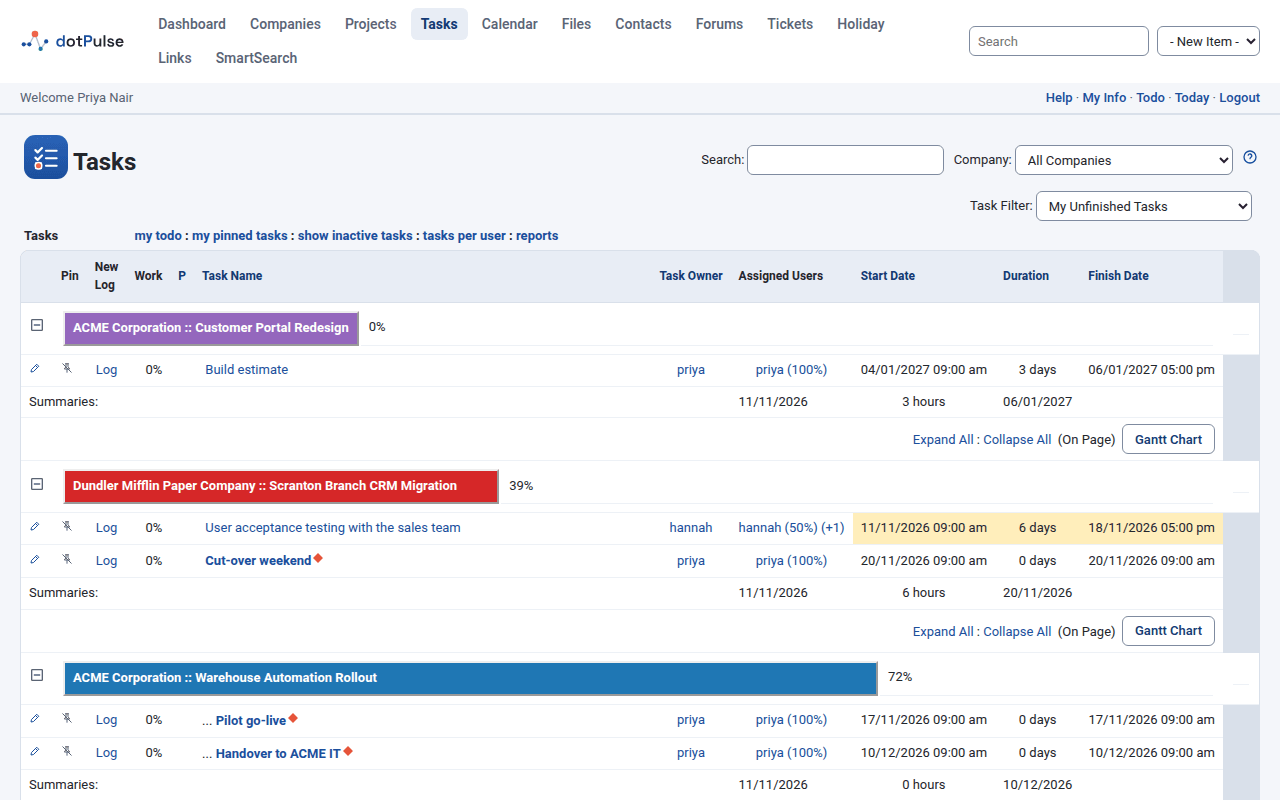
Use the controls above the list to narrow it down:
- Search: type a word and press Enter. It searches task names and descriptions.
- Company: shows only the tasks of one company's projects.
- User: administrators can look at another person's tasks.
- Task Filter: picks which tasks to show:
| Filter | Shows |
|---|---|
| My Tasks | Tasks assigned to you. |
| My Unfinished Tasks | Your tasks that are not at 100 %, in projects that are not on hold, complete or archived. |
| All Unfinished Tasks | Everyone's unfinished tasks, with the same project rules. |
| My Projects | All tasks in projects you own. |
| All Tasks for my Company | All tasks in your company's projects. |
| All Tasks (unassigned) | Tasks nobody is assigned to. |
| All Tasks I Have Created | Tasks you own. |
| All Tasks | Every task you may see. |
| All Tasks Finished Last 7 Days | Tasks that reached 100 % with an end date in the last week. |
| My Tasks Finished Last 7 Days | The same, for your tasks only. |
The links under the filters open other views:
- my todo: your to-do list (see below).
- my pinned tasks: only the tasks you pinned. all tasks takes you back.
- show inactive tasks / show active tasks: switches between active and inactive tasks.
- tasks per user: a list of tasks grouped by assignee.
- reports: the project reports.
Click the arrow at the left of a project bar to show only that project. Click it again to show all projects.
Read the task list
| Column | Meaning |
|---|---|
| (pencil) | Edit the task. |
| Pin | Pin or unpin the task. See Pin a task. |
| New Log | The Log link opens the form to log work on the task. |
| Work | Progress in percent. |
| P | Priority arrows, or a warning icon if a task log reported a problem. A paper clip means the task has files. |
| Task Name | Child tasks are indented under their parent. |
| Task Owner, Assigned Users | Who owns the task and who works on it. |
| Start Date, Duration, Finish Date | The planned schedule. |
| Last Update | Shown when the History module is active. |
The row colour tells you how the task is doing. The key under the list explains it: Future Task, Started and on time, Should have started, Overdue and Done.
Use Expand All and Collapse All to open or close all parent tasks. Inside a project, tick Incomplete Tasks Only to hide finished tasks.
Your to-do list
Go to Tasks and click my todo. The page My Tasks To Do lists the unfinished, active tasks assigned to you.
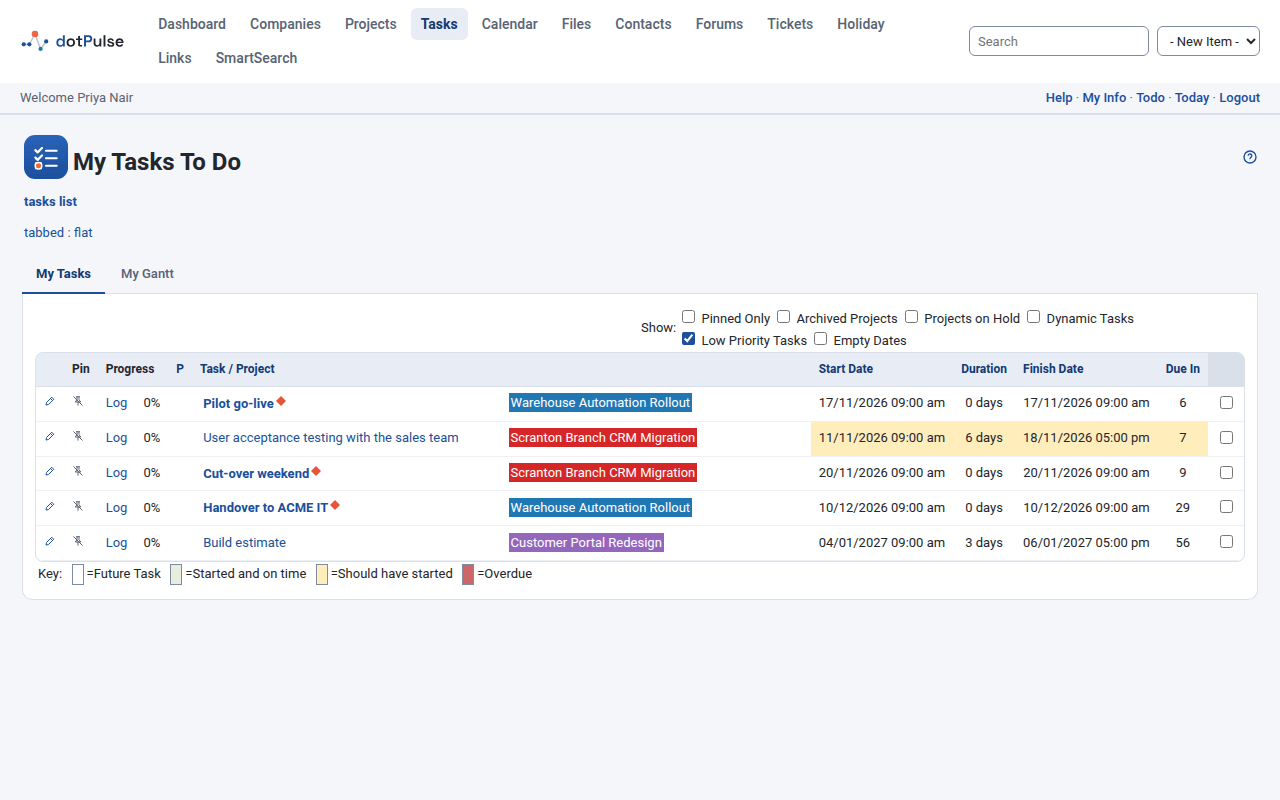
It has two tabs: My Tasks (a list) and My Gantt (a chart). If the Helpdesk add-on is active, a third tab shows My Open Requests.
Tick the boxes under Show to add more tasks to the list:
- Pinned Only: only tasks you pinned.
- Archived Projects: include tasks of archived projects.
- Projects on Hold: include tasks of projects on hold.
- Dynamic Tasks: include task groups (see Task groups).
- Low Priority Tasks: include low priority tasks. This box starts ticked.
- Empty Dates: include tasks with no start date.
The Due In column counts the days until each task's finish date. Administrators can pick another person in Show Todo for:.
Pin a task
Pinning keeps important tasks at hand. Click the pin icon in the Pin column of any task list. Click it again to unpin. Your pins are personal; other people do not see them.
To see only pinned tasks, click my pinned tasks on the tasks list, or tick Pinned Only on the to-do list.
Create a task
- Open the project.
- Click new task.
- Type the Task Name and fill in the tabs below.
- Click save.
To create a child task, open the parent task and click new task there. The new task starts with that parent.
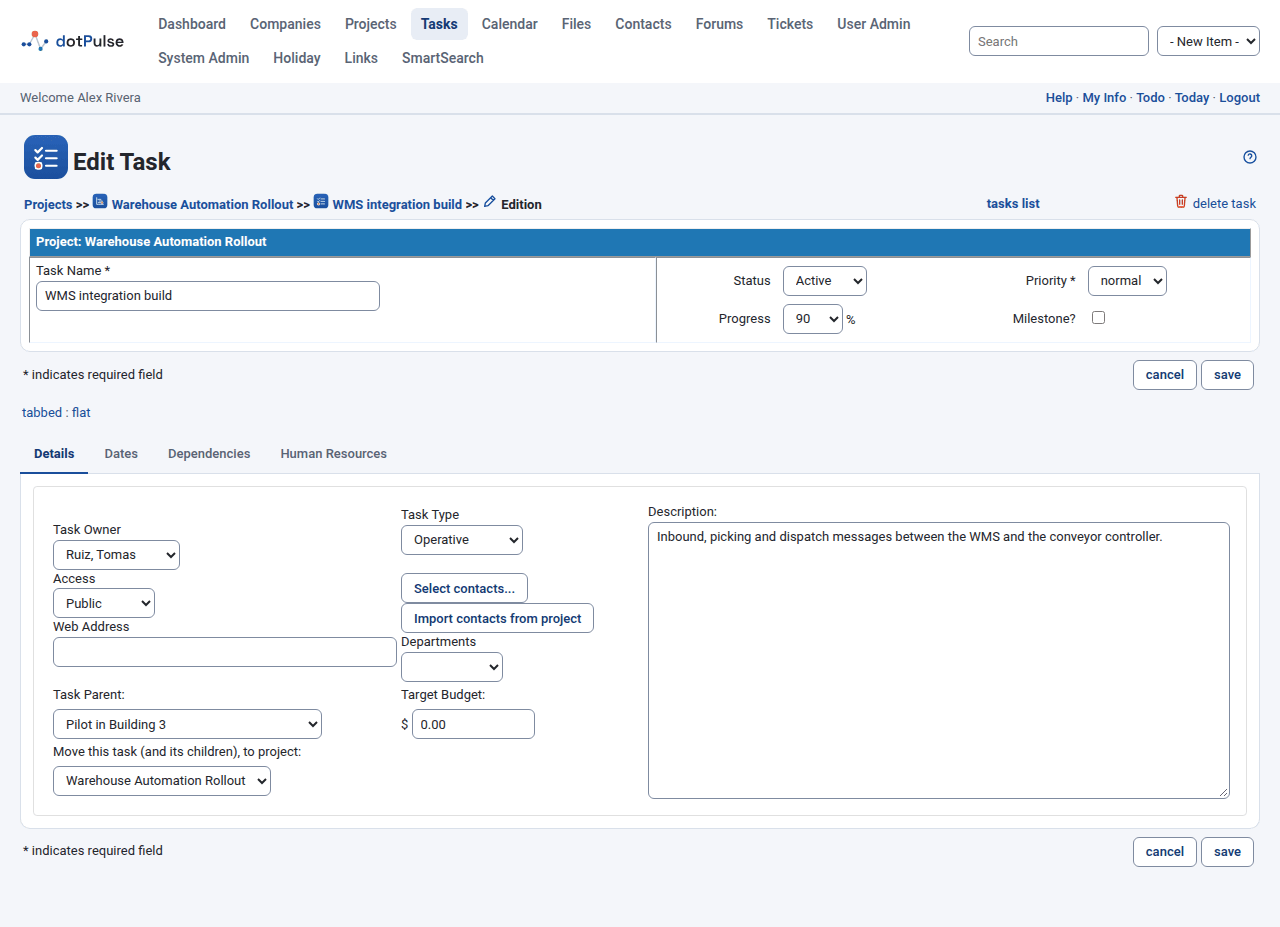
The top of the form shows the project and these fields:
| Field | Meaning |
|---|---|
Task Name * |
A short, clear name. |
| Status | Active or Inactive. Inactive tasks leave the normal lists and appear under the project's Tasks (Inactive) tab. |
Priority * |
low, normal or high. |
| Progress | How much is done, in steps of 5 %. |
| Milestone? | Marks a key date. A milestone has no duration. |
The rest of the form is split into tabs. You can switch tabs before saving; dotPulse keeps what you typed.
Details tab
| Field | Meaning |
|---|---|
| Task Owner | The person responsible for the task. It also decides which holiday calendar the dates follow (see Working days and holidays). |
| Access | Who can see the task. See Task access. |
| Web Address | A link related to the task. |
| Task Type | Unknown, Administrative or Operative. |
| Select contacts... | Pick contacts for this task. |
| Import contacts from project | Adds the project's contacts to the task. |
| Departments | Shown when the project's company has departments. |
| Task Parent | Makes this task a child of another task. None keeps it at the top level. |
| Target Budget | The planned budget for the task. |
| Description | Free text. |
| Move this task (and its children), to project | Only when editing. See Move a task to another project. |
Dates tab
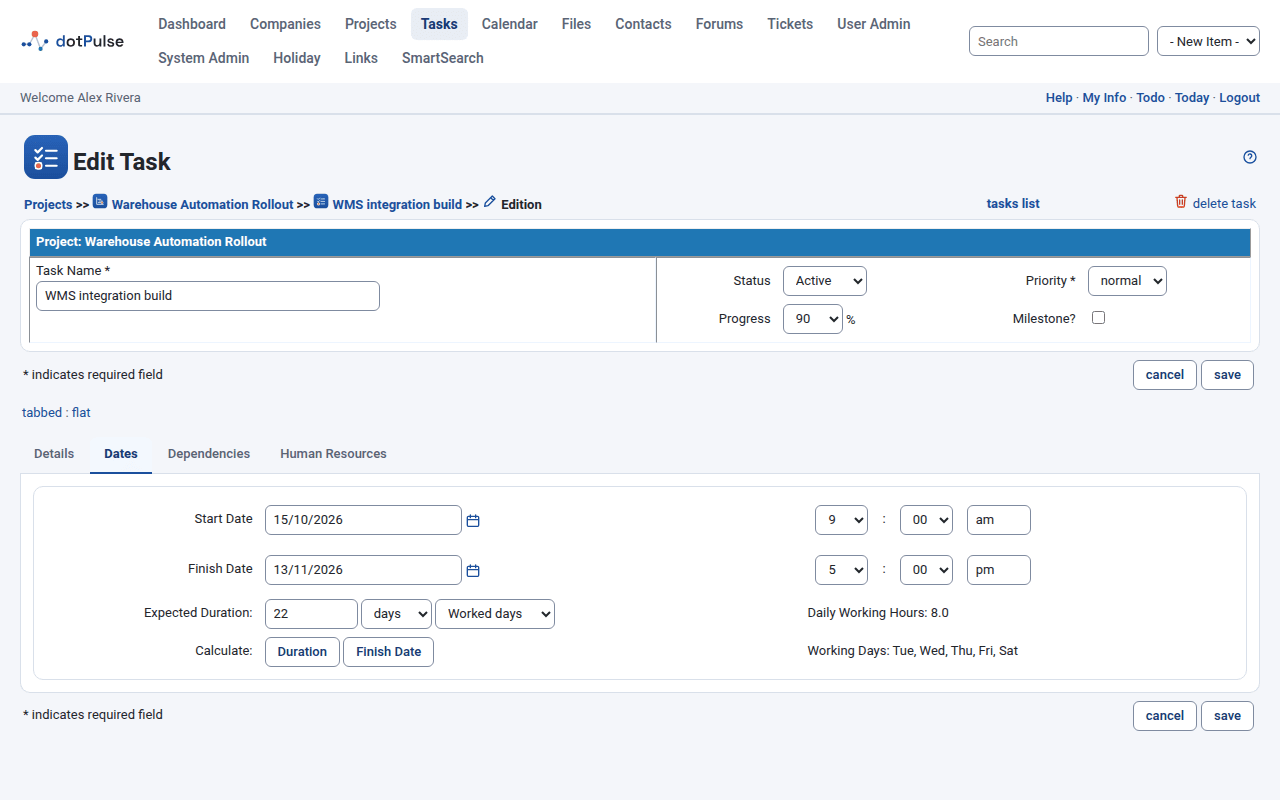
| Field | Meaning |
|---|---|
| Start Date | Day and time the work starts. |
| Finish Date | Day and time the work ends. |
| Expected Duration | A number plus hours or days, and Worked days or Calendar days. |
Under the fields, dotPulse shows the site's Daily Working Hours and Working Days.
The Calculate buttons fill in one value from the others:
- Duration: works out the duration from the start and finish dates.
- Finish Date: works out the finish date from the start date and the duration.
A day of duration counts as the site's daily working hours, not 24 hours.
Note
Only the task owner, the project owner or a system administrator can change dates, durations and dependencies. Others see a message in place of these fields.
Working days and holidays
When you click Finish Date, dotPulse counts the duration in working hours, one working day at a time. With Worked days it jumps over non-working days and holidays. With Calendar days it counts every day, weekends and holidays included.
If your site uses holiday calendars (the Holiday module), the dates follow the task owner's calendar. That is the calendar of the owner's own account, or else of their department or company. Change the owner and Finish Date uses the new owner's holidays. The same applies when dotPulse moves tasks because of dependencies, and to the reminder emails, which are not sent on the person's holidays.
Dependencies tab
A dependency says that this task can only start after another task ends.
- In All Tasks, select one or more tasks.
- Optionally type a delay in days in the box between the arrows, such as
+2or-1. - Click > to add them to Task Dependencies. Click < to remove selected ones.
- Tick Set task start date based on dependency if the start date should follow the latest finish date among them.
Dependency Tracking controls what happens when the tasks you depend on move:
- On: this task's dates move with them.
- Off: this task keeps its dates.
- Do not track this task: tasks that depend on this one do not move when it changes.
dotPulse refuses dependencies that make a loop, or that tie a task to its own parent.
Human Resources tab
Assign people to the task and say how much of their time it takes.
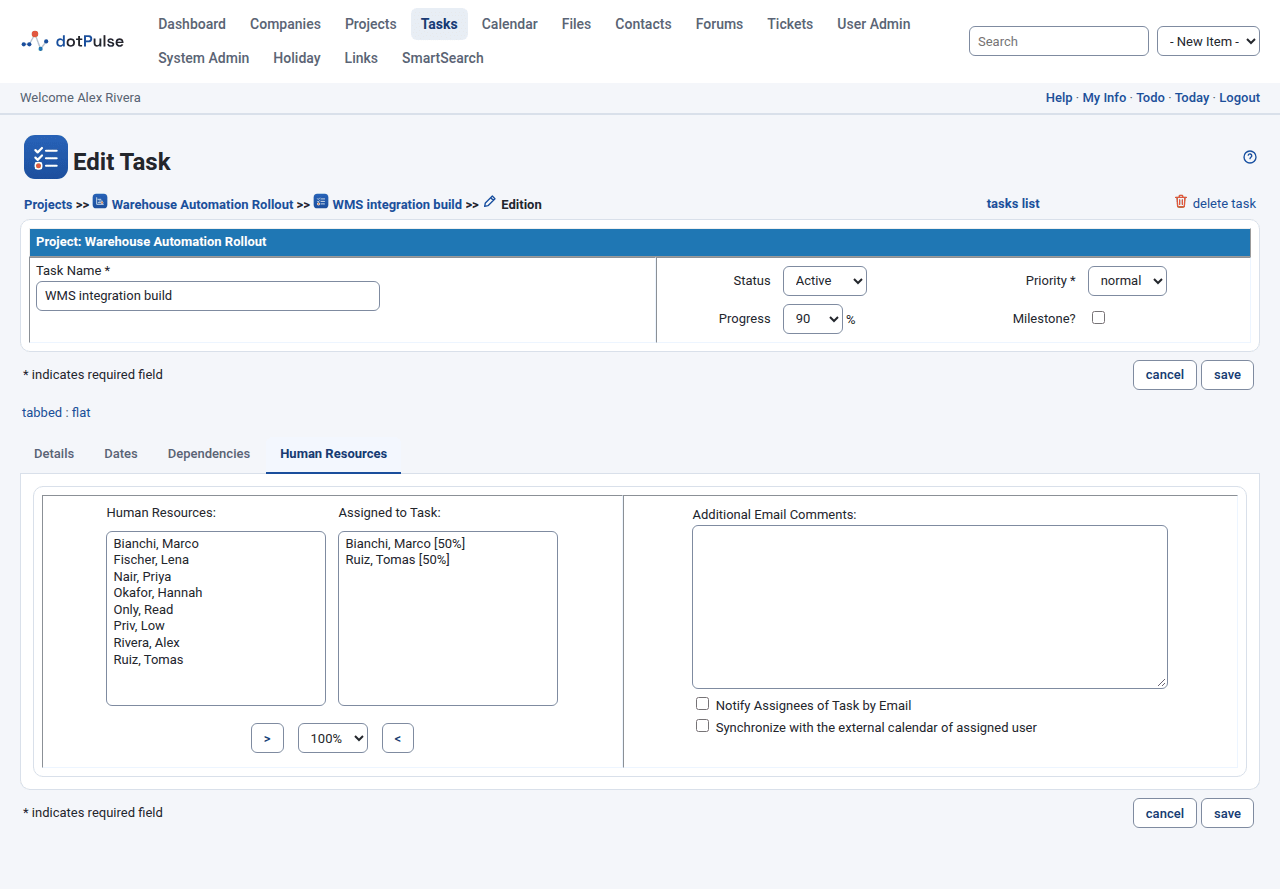
- Select one or more people in Human Resources.
- Pick a percentage (5 % to 100 %) in the list between the arrows.
- Click >. They appear in Assigned to Task with their percentage.
- To remove someone, select them in Assigned to Task and click <.
On the right:
- Additional Email Comments: text added to the notification email.
- Notify Assignees of Task by Email: sends the task details to the assignees when you save.
- Synchronize with the external calendar of assigned user: sends the task as a calendar invitation to the assignees.
If your administrator turned on over-allocation checks, dotPulse will not assign someone beyond their free capacity. It tells you so.
Add-on tabs
Add-on modules can add tabs to the task form. Common ones are Other resources (equipment and other non-human resources, with a percentage like people), Allocations, Detailed budget, Unit costs and Estimations.
Milestones
Tick Milestone? for a key moment, like a delivery or a sign-off. dotPulse sets its duration to zero. Milestones get a diamond on the board. You can hide them on the task Gantt chart.
Task groups and child tasks
Any task can have child tasks: set Task Parent on the child. The parent shows as a tree in the task lists. The task page of a parent has a Child Tasks tab.
A dynamic task (a task group) takes its dates, duration, worked hours and progress from its children. To make one, tick Dynamic Task on the Dependencies tab. Keep in mind:
- A dynamic task is meant to have children. Depending on your site's settings, dotPulse refuses a dynamic task without any.
- A dynamic task cannot depend on another task.
- You do not log work on a dynamic task; you log it on its children.
- Task groups do not appear on the board, and stay out of your to-do list unless you tick Dynamic Tasks.
Task access
The Access field limits who can see a task:
| Access | Who can see it |
|---|---|
| Public | Everyone who can see the project. |
| Protected | The owner, and assignees from the same company as the owner. |
| Participant | The owner and the assignees. |
| Privileged | The owner, the assignees, and people from the project's company. |
| Private | Only the owner. |
Reminders
If your administrator has turned on task reminders, dotPulse emails the assignees and the owner before a task's finish date. The reminder repeats once a day until the task reaches 100 % or the set number of repeats runs out. Nobody gets a reminder on a day that is not a working day for them. The administrator sets how many days before the finish date the reminders start, and how many repeats there are.
Move a task to another project
- Edit the task.
- On the Details tab, pick the new project in Move this task (and its children), to project.
The form saves straight away. The task's children and files move with it. The list only offers projects of the same company that are not archived.
Organize many tasks at once
On a project page, click organize tasks. Tick the tasks in the Select column, then pick an Action: Copy, Move, Delete, Mark as Finished or one of the set priority to options. Only Copy is offered if you cannot edit tasks. For copy and move, pick the target Project and Task (the new parent). Tick Include Children to apply the action to child tasks too; it does not apply to delete, or to a move within the same project. Then click update selected tasks.
The task page
Click a task name to open its page.
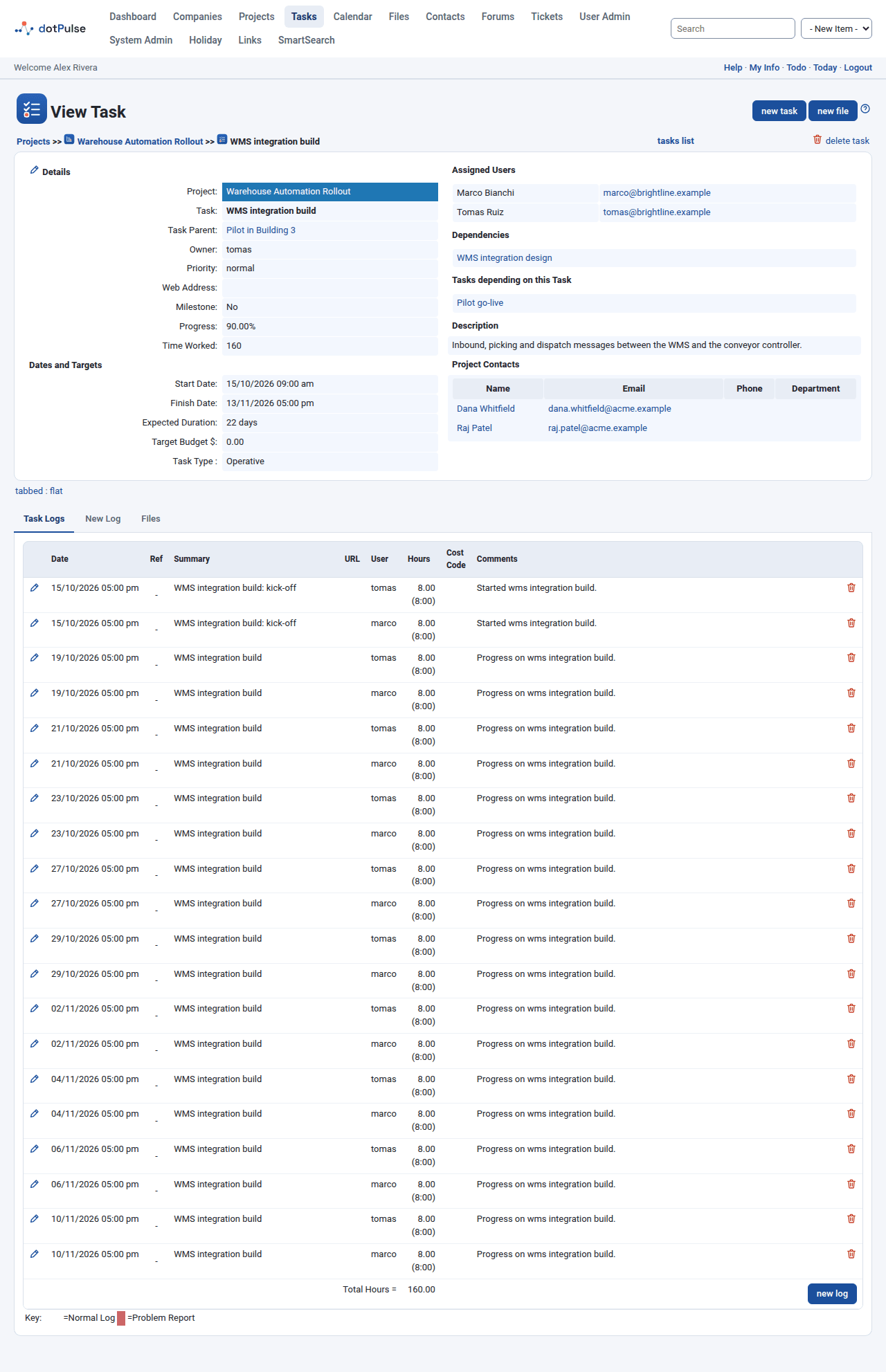
The left side shows Details (project, parent, owner, priority, web address, milestone, progress and Time Worked) and Dates and Targets (start, finish, expected duration, target budget, task type). The right side shows Assigned Users, Dependencies, Tasks depending on this Task, the description, departments, Task Contacts and Project Contacts.
Use the pencil icon (edit this task) to edit it. The buttons new task and new file add a child task or a file to this task.
The tabs below are:
- Task Logs: the work logged on the task. See Logging work.
- New Log (or Edit Log): the form to log work.
- Child Tasks: when the task has children.
- Add-on tabs, such as Files, when those modules are active.
Delete a task
- Open the task, or its edit form.
- Click delete task and confirm.
Warning
Deleting a task also deletes all its child tasks and the work logged on them. It cannot be undone. To keep the history, set the task's status to Inactive instead.