Logging work
A task log records work you did on a task: when, how many hours, and what happened. Logging is also how you update a task's progress. Your logs feed the hour totals on your dashboard, on the project page and in the reports.
Log time on a task
You can log work on a task you are allowed to edit.
- Open the task. You can also click Log in the New Log column of any task list.
- Open the New Log tab.
- Fill in the form (see the fields below).
- Click update task.
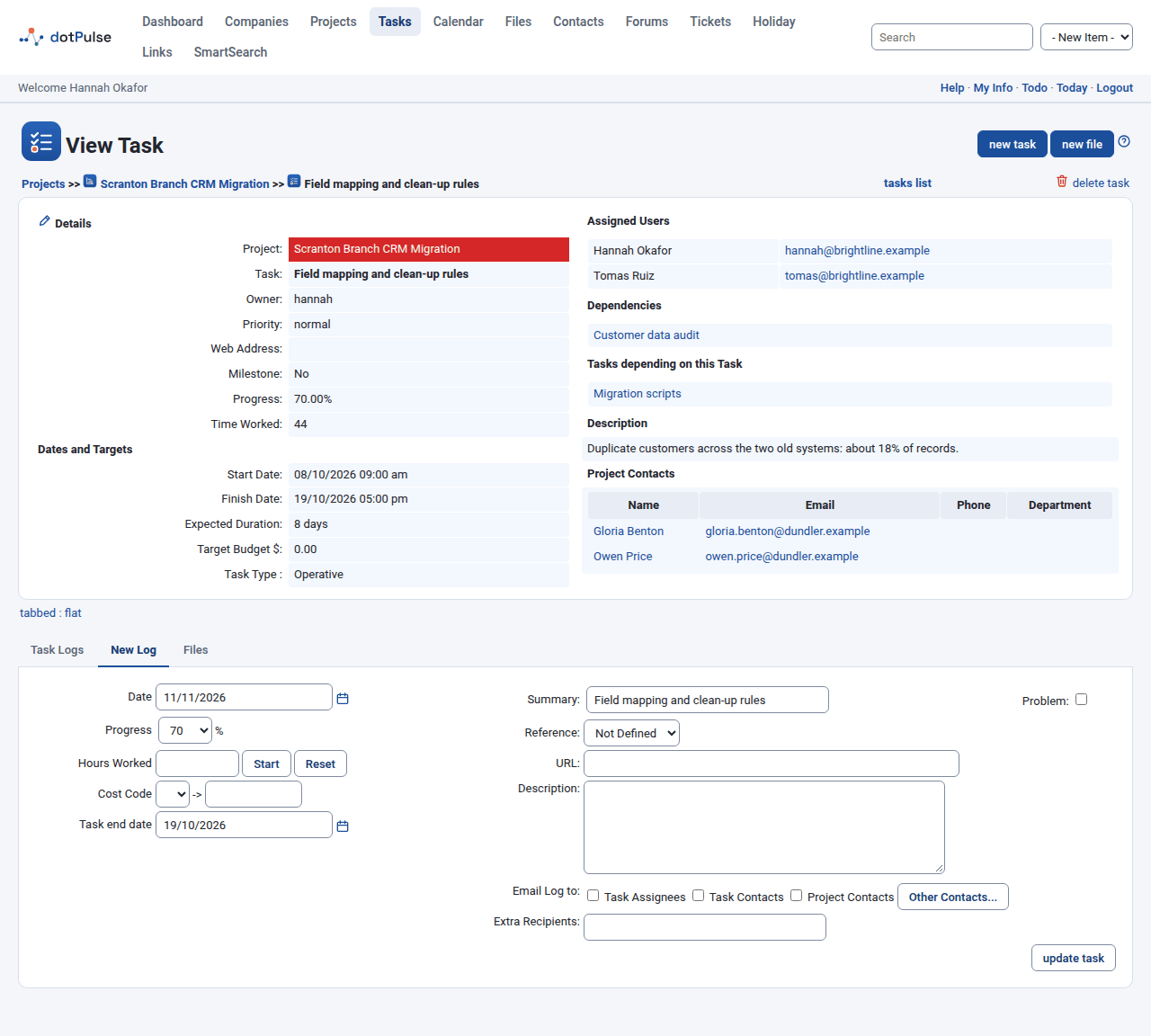
dotPulse saves the log, updates the task and shows the Task Logs tab with your new entry.
Note
Task groups (dynamic tasks) have no New Log tab. Log your work on their child tasks; the group adds them up.
Log fields
| Field | What to enter |
|---|---|
| Date | The day you did the work. It defaults to today. Click the calendar icon to change it. |
| Progress | The task's new percent complete, in steps of 5 %. This changes the task itself. |
| Notify owner | Emails the task owner about this log. Only shown when you are not the owner. |
| Hours Worked | The time spent, as a decimal (1.5) or as hours and minutes (1:30). |
| Start / Reset | A timer. Click Start when you begin; the hours field counts up while it runs. Click Stop to pause it and Reset to clear it. |
| Cost Code | The billing code to charge the time to. Pick one from the list, or type a code in the box next to it. |
| Task end date | Changes the task's finish date. Only shown to the task owner, the project owner and administrators. |
| Summary | A one-line title for the log. It starts with the task name. |
| Problem | Tick it to flag a problem. See Report a problem. |
| Reference | Where the work came from: Not Defined, Email, Helpdesk, Phone Call or Fax. |
| URL | A related web address. Include the http:// or https://. |
| Description | What you did, in as much detail as you like. |
The cost codes in the list are the billing codes your administrator set up for the project's company, plus the ones shared by all companies.
Update the progress of a task
Every log carries the task's progress. Set Progress to the new value when you log. If nothing changed, leave it as it is.
When you set Progress to 100 % and the task has no finish date, the date of your log becomes its finish date.
The progress of a project is worked out from its tasks, weighted by their durations. Task groups get their progress from their children. You can also change progress roughly on the board, or directly in the task's edit form.
Email the update
Under Email Log to, tick who should get a copy of the log:
- Task Assignees: everyone assigned to the task.
- Task Contacts: the contacts linked to the task.
- Project Contacts: the contacts linked to the project.
- Other Contacts...: opens a list to pick more contacts.
- Extra Recipients: type extra email addresses.
The email includes the project, the task, the hours and your summary and description. Which boxes start ticked comes from Task Log Email Defaults in your preferences.
Report a problem
Tick Problem when something blocks the task. The log then shows with a red background in the Task Logs tab. In the task lists, the task gets a warning icon in the P column; click it to see only the problem logs of that task. On the projects list, the P column can sort projects with problems first.
See, edit and delete logs
The Task Logs tab of a task lists all its logs, oldest first, with a Total Hours line at the bottom.
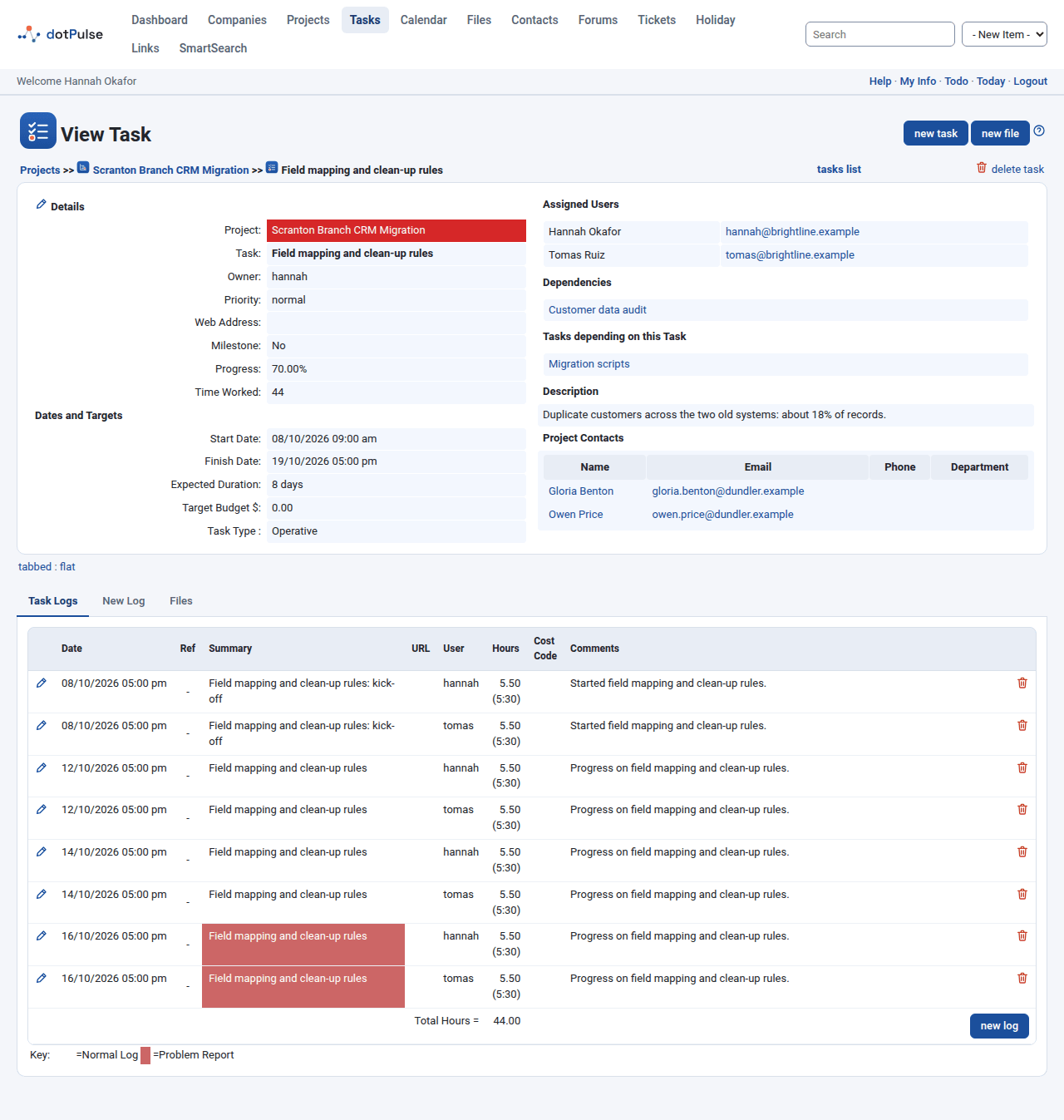
The columns are Date, Ref (the reference, as an icon), Summary, URL, User, Hours (as a decimal and as hours:minutes), Cost Code and Comments (the description). The key at the bottom tells a Normal Log from a Problem Report.
- To edit a log, click the edit icon at the left of its row. The form opens in the Edit Log tab. Change it and click update task.
- To delete a log, click the delete icon at the right of its row and confirm.
You need the matching permission to see these icons.
Warning
Deleting a task also deletes all the logs on it and on its child tasks.
Where logged hours appear
| Where | What you see |
|---|---|
| Your dashboard | Hours logged this week: the hours you logged from Monday to Sunday of this week. |
| A task's page | Time Worked, and the Total Hours of the Task Logs tab. |
| A project's page | Worked Hours in the summary, and the project's Task Logs tab. |
| Project reports | For example Task Log (the logs of a user) and User performance (hours worked against hours allocated). Open them with the reports link on a project page or the tasks list. |
| Timesheet add-on | If installed, it lists the logs you wrote on the chosen day. |
The project Task Logs tab
A project's Task Logs tab gathers the logs of all its tasks.
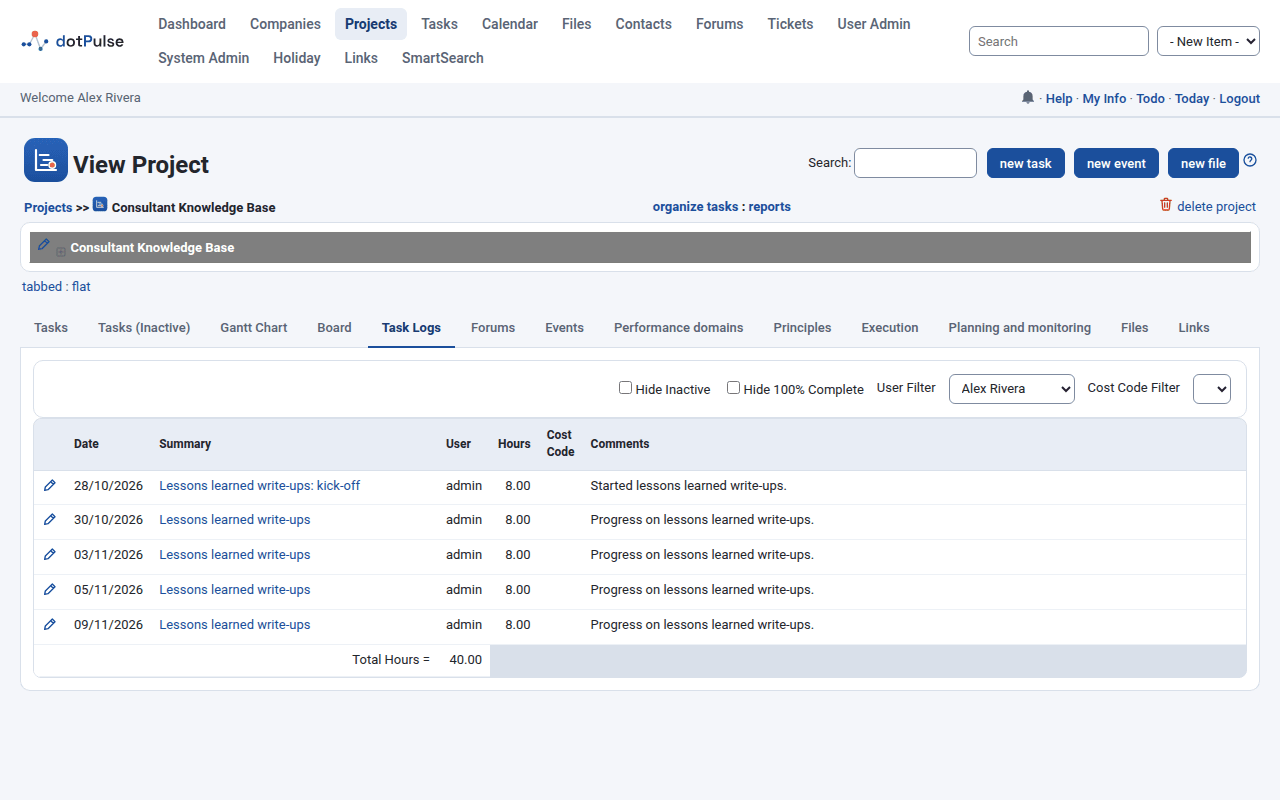
Use the filters at the top to narrow it down:
- Hide Inactive: leave out the logs of inactive tasks.
- Hide 100% Complete: leave out the logs of finished tasks.
- User Filter: show one person's logs, or All Users. It starts on your own logs.
- Cost Code Filter: show only the logs with one cost code.