Calendar
The calendar shows your events (meetings, appointments, reminders) together with the tasks you are working on. Open Calendar in the modules menu.
Month view
The calendar opens on the current month, in the Monthly Calendar view.
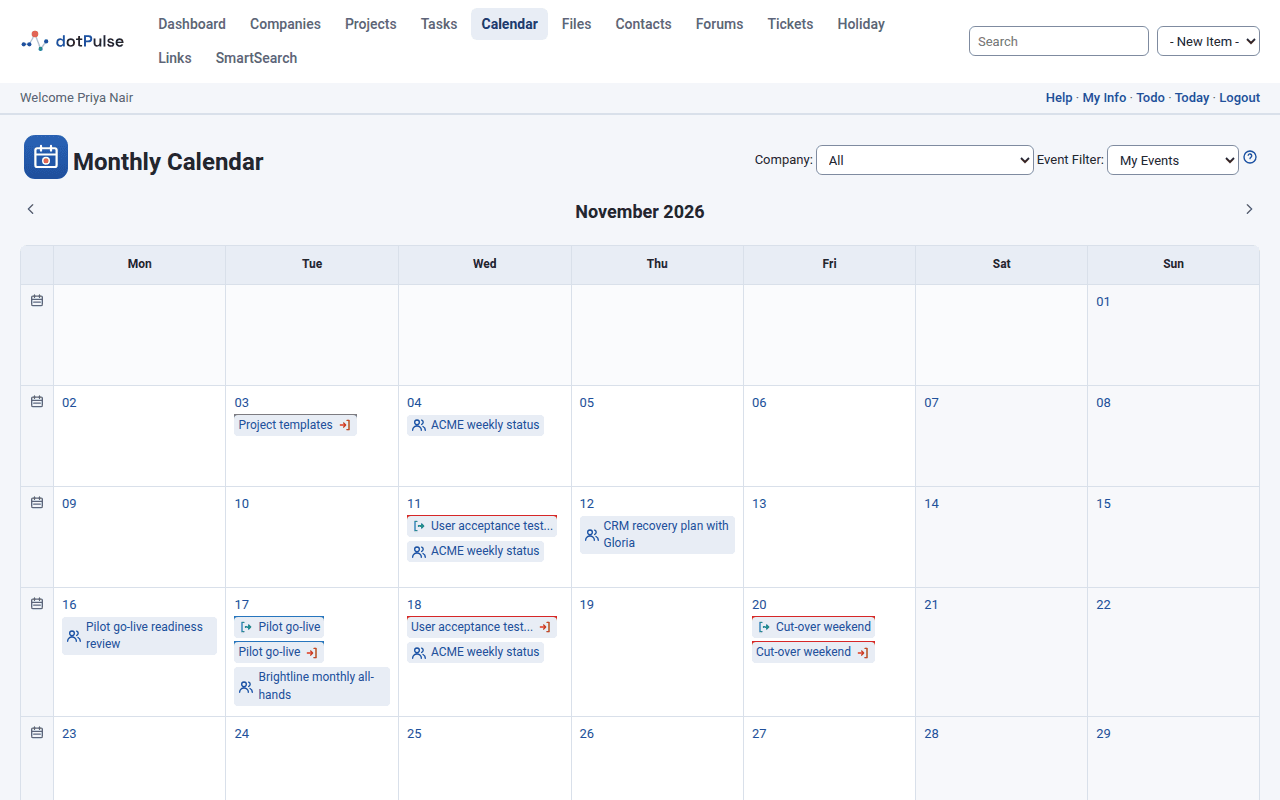
- Use the arrows on each side of the month name to go to the previous or next month.
- Today is highlighted, and weekends are shaded.
- Click a day's number to open that day in the day view.
- Click the week icon at the start of a row to open that week in the week view.
- Below the calendar, small calendars show the previous and next months. Click a day in them to open it, or the month name to open that month.
Each day lists:
- Your tasks, in the colour of their project. A task appears from its start date to its finish date, with a start mark on the first day and a finish mark on the last.
- Events, each with an icon for its type.
- Birthdays of contacts, with a cake icon and the age they turn.
Hover over an item to see more about it, and click it to open it.
Week view
The Week View shows the seven days of one week in two columns, with the same tasks, events and birthdays as the month view. Today's date is in red.
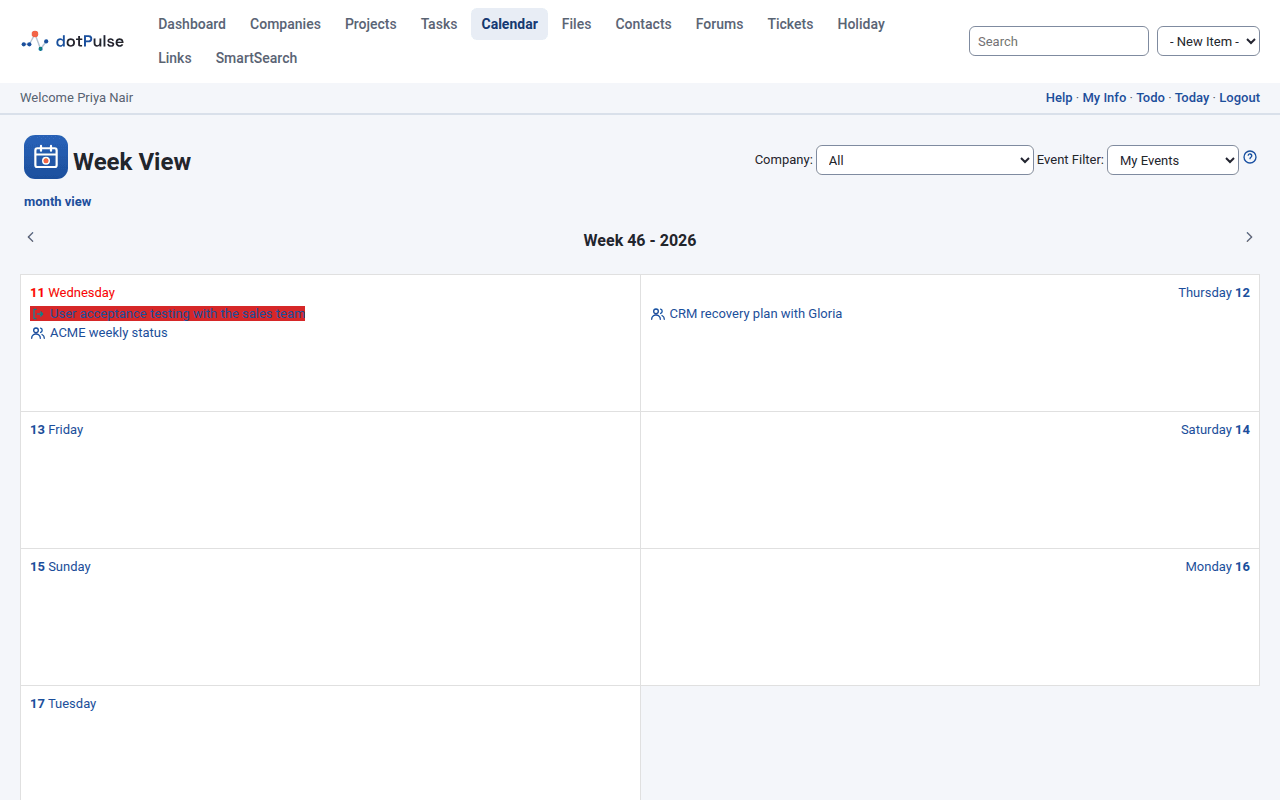
- Use the arrows to go to the previous or next week.
- Click a day's name to open it in the day view.
- Click today at the bottom to come back to the current week.
- Click month view below the title to go back to the month.
Day view
The Day View shows one day in detail. Open it by clicking a day, or click Today in the bar under the modules menu.
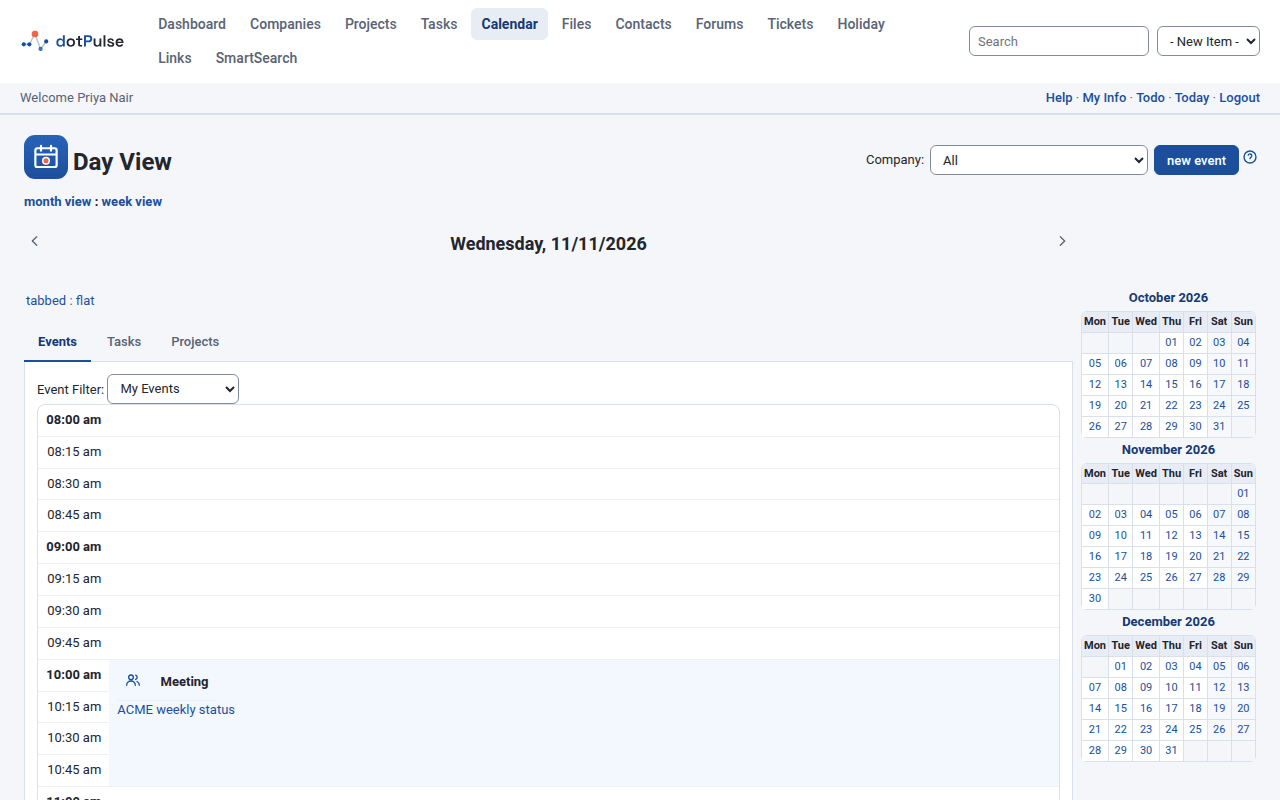
- Use the arrows to go to the previous or next day.
- Click month view or week view below the title to zoom out.
- Click new event to add an event on this day.
The day has two tabs:
- Events: the day's events, laid out on a timetable by the hour. Events that overlap sit side by side. Birthdays are listed above the timetable.
- Tasks: your tasks to do.
Depending on your administrator's settings, small calendars of the surrounding months appear beside the tabs.
Filter the calendar
The month and week views have two filters at the top. The day view has Company at the top and Event Filter on its Events tab.
- Company: show only the events and tasks of one company's projects, or All.
- Event Filter: which events to show:
- My Events: events you are invited to.
- Events I Created: events you created.
- All Events: every event you may see.
The filter you choose stays in place until you log out. The one the calendar starts with is your Default Event Filter preference. See Your account and preferences.
Private events of other people never show, whatever the filter.
Administrators
Administrators also get Show Events for on the day view, to see the events of another user.
Add an event
- Click new event in the day view, or choose Event in the - New Item - list of the top bar.
- Fill in the form (see below).
- Choose who to invite (see Invite people).
- Click submit.
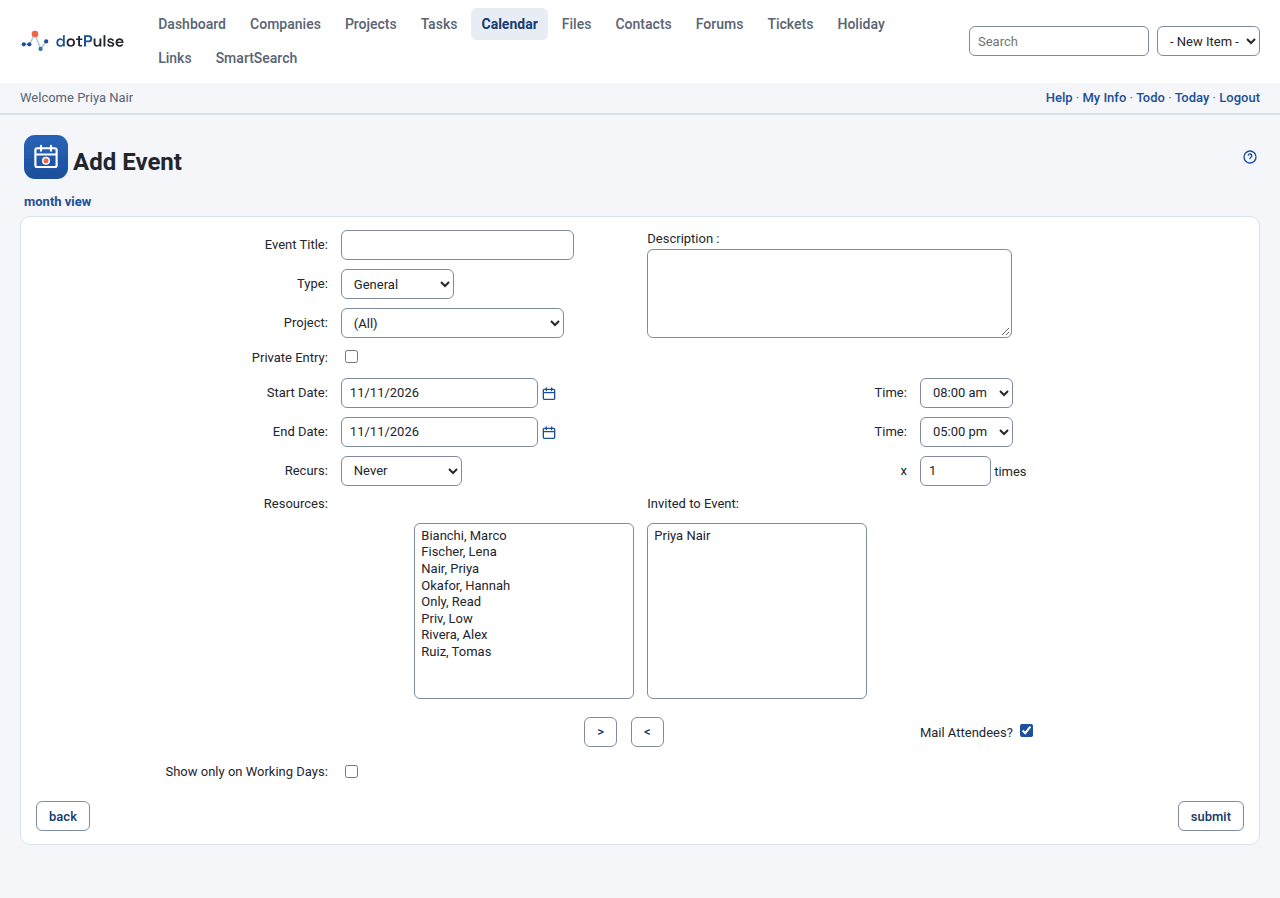
The event form has these fields:
| Field | What it is for |
|---|---|
| Event Title | The name shown in the calendar. Required. |
| Description | Details of the event. |
| Type | General, Appointment, Meeting, All Day Event, Anniversary or Reminder. The type sets the event's icon. |
| Project | The project the event belongs to, or (All) for none. A project's events also appear on the project's Events tab. |
| Private Entry | Tick it to keep the event to yourself. Nobody else sees it, even if they are invited. |
| Start Date, End Date and their Time | When the event starts and ends. Click the calendar icon to pick a date: you can't type it. If you pick a start date after the end date, the end date moves with it. |
| Recurs and x ... times | Whether the event repeats, and how many times in total. See Repeat an event. |
| Show only on Working Days | Tick it for an event that spans several days but only happens on working days. The calendar then leaves it out of the days that are not working days in dotPulse's settings, usually weekends. |
Your administrator may add more fields of their own at the bottom of the form.
Invite people
Under Resources is the list of people you can invite. Under Invited to Event are the people invited. When you create an event, you are invited to it.
- To invite someone, select them under Resources and click >.
- To remove someone, select them under Invited to Event and click <.
Leave Mail Attendees? ticked to email the invitation to the people invited.
When someone is busy
If anyone you invited already has an event at that time, dotPulse lists them under "The following users have clashes with the proposed event time" and offers four choices:
- Suggest Alternative: dotPulse looks for the first free time slot for everyone. Enter the Earliest Date, Latest Date, Earliest Start Time, Latest Finish Time and the Duration in minutes, then click submit. dotPulse opens the event form with the first slot it finds, which you can still change. It only looks at working days.
- Cancel: drop the event.
- Mail Request: don't save the event, but email the people invited about the proposed meeting so they can agree a time with you.
- Book Event Despite Conflict: save the event anyway.
Repeat an event
Choose how often the event repeats under Recurs: Hourly, Daily, Weekly, Bi-Weekly, Monthly, Quarterly, Semi-Annually or Annually. Then type in the box after x how many times it happens in total, for example 10 for ten weekly meetings. Never means the event happens once.
View, edit or delete an event
Click an event in the calendar, or in Coming up on your dashboard, to open it. The View Event page shows its title, type, project, start and end, how it repeats, who is invited (Attendees) and the description.
- Click edit this event to change it, then submit.
- Click delete event and confirm to remove it.
- Click month view or day view to see it in the calendar.
Tasks on the calendar
The calendar shows the tasks assigned to you, in projects that are not archived. They come from the task's start and finish dates, so to move a task in the calendar you change its dates on the task itself. See Tasks.
Holidays
The calendar doesn't mark public holidays. If your administrator uses the holiday module, holidays count as non-working days in the rest of dotPulse: for example, Suggest Alternative skips them when it looks for a free slot.