Your account and preferences
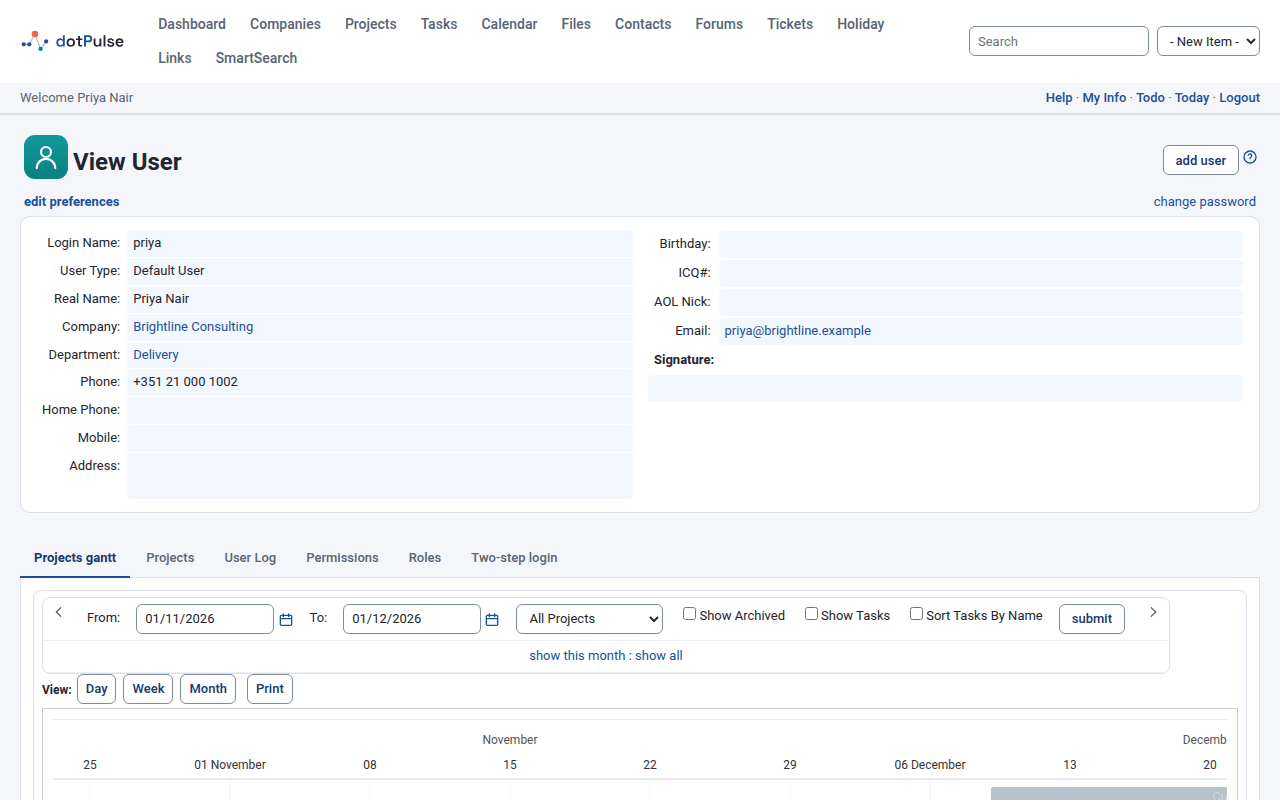
Click My Info in the bar under the modules menu to open your account page, View User. From there you can check your details, change your password, set up two-step login and choose your preferences.
Your details
The top of the page shows your Login Name, User Type, Real Name, Company, Department, phone numbers, Address, Birthday, Email and Signature.
Most of these details come from your contact record: every user in dotPulse has one (see Companies, departments and contacts).
Change your details
- If you may edit contacts, open Contacts, find yourself and click Edit. Change your name, phone numbers, address or email, then click submit.
- Your user account itself (login name, user type, company, signature) is managed by your administrator. Administrators see an edit this user link on this page; if you don't, ask your administrator to make the change.
Change your password
- Click My Info.
- Click change password, on the right of the line below the title.
- In the small window that opens, enter your Current Password, then your New Password twice (New Password and Repeat New Password).
- Click submit.
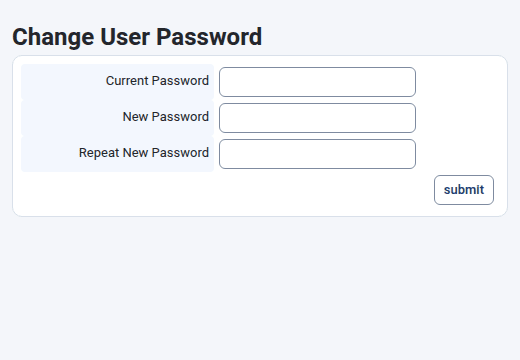
The new password must have at least the minimum length your administrator has set. dotPulse tells you if it is too short or if the two entries don't match.
Set up two-step login
Two-step login asks for a code from an app on your phone after your password. Someone who steals your password still can't log in as you.
You need an authenticator app on your phone. Any of them works, for example Google Authenticator, Microsoft Authenticator, Aegis, FreeOTP or 1Password.
- Click My Info and open the Two-step login tab.
- Click Set up two-step login.
- Scan the QR code with your authenticator app. If you can't scan it, type the Key shown next to it into the app instead.
- Enter the 6-digit code the app shows into Code and click Turn on.
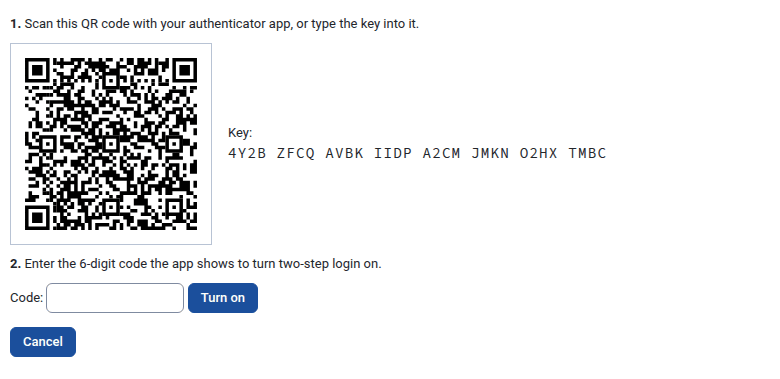
To stop half way, click Cancel.
Save your recovery codes
As soon as two-step login is on, dotPulse shows ten recovery codes.
You only see the recovery codes once
Save them now, somewhere safe and away from your phone: a password manager or a printed copy. Each code logs you in once if you lose your phone.
The tab then says Two-step login is on., with the date you turned it on and how many recovery codes you have left. From now on, logging in takes your password and a code. See Log in with two-step login.
Get new recovery codes
If you have used most of your recovery codes, or think someone has seen them:
- Open the Two-step login tab.
- Enter a current code from your app (or a recovery code) into Code.
- Click New recovery codes.
dotPulse shows ten new codes, once. The old ones stop working.
Turn two-step login off
- Open the Two-step login tab.
- Enter a current code from your app (or a recovery code) into Code.
- Click Turn off and confirm.
Your password alone logs you in again.
Lost your phone and your recovery codes
Ask your administrator. They can reset two-step login for your account. You then log in with your password and can set it up again.
API tokens
The API tokens tab only appears when your administrator has turned on the REST API. It is off by default.
A token lets a program use dotPulse on your behalf, with your permissions. To create one, enter a Name, choose the Access (Read only or Read and write) and when it Expires (30, 90 or 365 days, or Never), then click Create token. Copy the token straight away: dotPulse shows it only once. Click Revoke next to a token to stop it working.
Other tabs
Your account page may show more tabs, depending on the modules installed and your permissions. Common ones are:
- Projects and Projects gantt: your projects, as a list and as a Gantt chart.
- User Log: when you logged in and out, between two dates you choose.
- Permissions and Roles: what you are allowed to do. Only administrators can change them.
Edit your preferences
Preferences change how dotPulse looks and behaves for you only.
- Click My Info.
- Click edit preferences on the line below the title.
- Change what you need.
- Click submit.
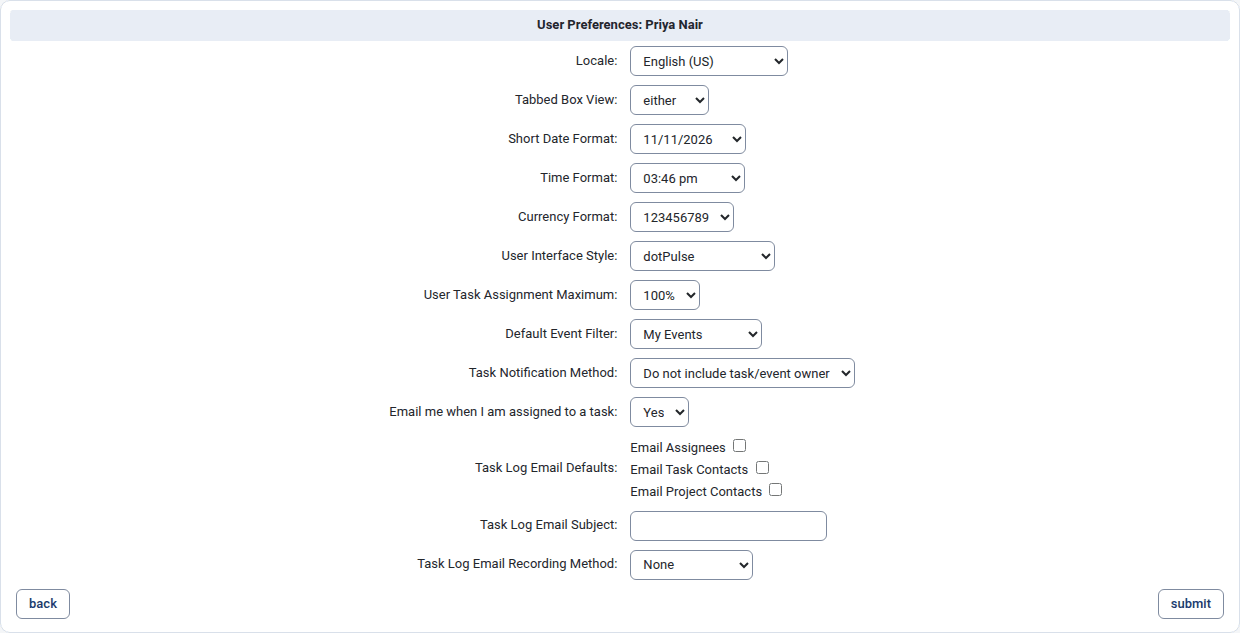
Until you save this page for the first time, your preferences follow the defaults your administrator set for everyone. Saving stores every preference on the page as your own.
Locale
The language of the interface, for example English (US) or English (GB). Each language is listed by its English name.
Tabbed Box View
How pages with tabs are shown:
- either: tabs, with the links tabbed : flat above them so you can switch on any page. This is the default.
- tabbed: always tabs, without the switch.
- flat: always flat: the content of every tab shown one after the other.
Some pages, such as your account page, always use tabs.
Short Date Format
How dates are written. Each option shows today's date in that format, for example day/month/year or month/day/year.
Time Format
How times are written: 12-hour with AM/PM, or 24-hour with or without seconds. Each option shows the current time as an example.
Currency Format
How amounts of money are written: the separators for thousands and decimals. Each option shows the same amount formatted for one locale.
User Interface Style
The look of dotPulse. Choose:
- dotPulse for the light theme.
- dotpulse-dark for the dark theme.
The list also has older styles inherited from dotProject. dotPulse is designed and tested with its own two themes, so use one of those.
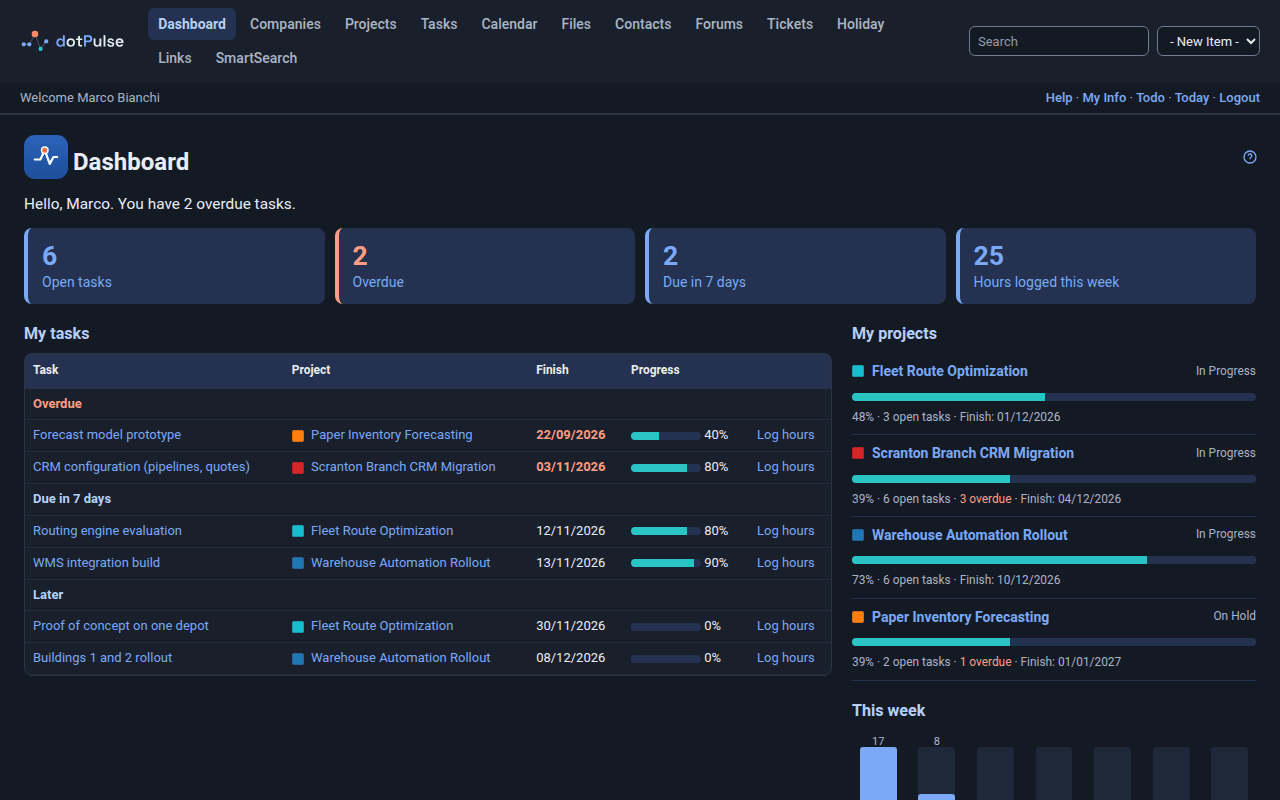
The change applies from the next page you open.
User Task Assignment Maximum
How much work you can take on, as a percentage of your time, from 5 % to 200 %. The default is 100 %. When your administrator has turned on the related setting, dotPulse uses this figure to show how much of your capacity is already taken when someone assigns you to tasks.
Default Event Filter
Which events the calendar shows when you open it:
- My Events: events you are invited to.
- Events I Created: events you created.
- All Events: every event you may see.
You can still change the filter on the calendar itself. See Calendar.
Task Notification Method
Whether emails about a task or event also go to its owner:
- Do not include task/event owner
- Include task/event owner
With Include task/event owner, the Notify owner box is also ticked by default when you log work on someone else's task.
Email me when I am assigned to a task
Yes (the default) sends you an email when someone else assigns you to a task. Choose No to stop these emails.
Task Log Email Defaults
Which boxes are ticked by default under Email Log to when you log work on a task:
- Email Assignees: the people assigned to the task.
- Email Task Contacts: the task's contacts.
- Email Project Contacts: the project's contacts.
You can still change the boxes each time you log work.
Task Log Email Subject
Text added at the start of the subject of the emails sent when you log work, for
example [Work log]. The task log's summary follows it.
Task Log Email Recording Method
What dotPulse does after emailing a task log:
- None: nothing.
- Append to Log: adds a note to the task log's description saying when it was emailed and to whom.