The interface
Every dotPulse page shares the same frame: a top bar with the modules, a page title with links and filters, and the page content below. This page explains those common parts once, so the rest of the guide can focus on the work.
Log in
- Open the address of your dotPulse site in your browser.
- Enter your Username and Password.
- Click login.
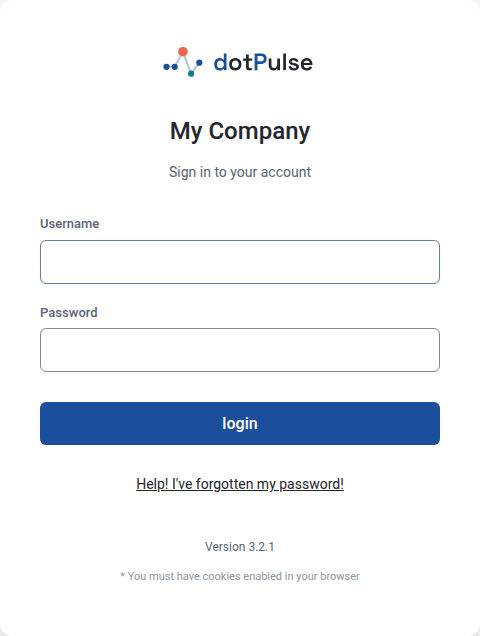
dotPulse needs cookies to keep you logged in. If the login page keeps coming back, check that your browser accepts cookies from the site.
If you mistype your password several times in a row, dotPulse makes you wait for a while before you can try again ("Too many login attempts").
After you log in, dotPulse opens your dashboard, unless your administrator has chosen another start page.
Log in with two-step login
If you have turned on two-step login, dotPulse asks for a second code after your password:
- Open the authenticator app on your phone.
- Type the 6-digit code it shows for dotPulse into Code.
- Click Verify.
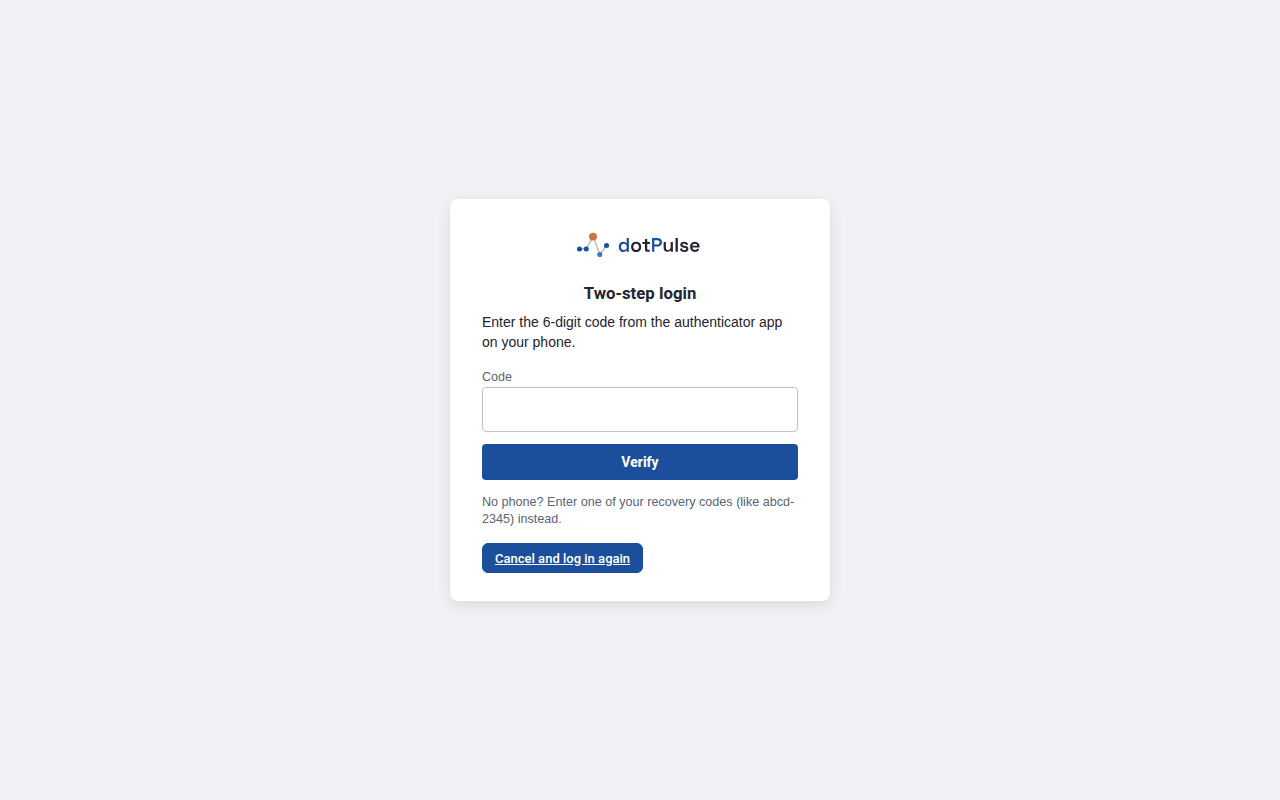
If you don't have your phone, type one of your recovery codes (they look like
abcd-2345) instead of the 6-digit code. Each recovery code works only once.
You have a few minutes to enter the code. After that, or after several wrong codes, dotPulse sends you back to the login page and you start again with your password. To give up and start again yourself, click Cancel and log in again.
The code is not accepted?
Codes change every 30 seconds and depend on the clock of your phone. Check that your phone's time is set automatically, and use the newest code.
Forgot your password
- On the login page, click Help! I've forgotten my password!
- Enter your Username and the email address of your account.
- Click send password.
If the username and email match an account, dotPulse emails you a link. Open it within one hour, enter your new password twice (New Password and Repeat New Password) and click submit. You can then log in with the new password.
For your security, dotPulse shows the same message whether or not the account exists. If no email arrives, check your spam folder, then ask your administrator.
The top bar
The top bar is on every page.

From left to right it holds:
- The logo: click it to go back to your start page.
- The modules menu: one link for each module you can open, such as Dashboard, Companies, Projects, Tasks, Calendar, Files and Contacts. The module you are in is highlighted. Which modules appear depends on what your administrator has installed and what you may access.
- Search: type a word and press Enter to search all of dotPulse. See Search. It only appears if you may use SmartSearch.
- - New Item -: a quick way to create something. Pick Company, Contact, Event, File or Project and dotPulse opens the form for it. You only see the items you are allowed to add.
Below it, a thinner bar greets you by name and has these links:
- Project tips: a bell that appears on the pages of a project. See Your dashboard.
- Help: opens dotPulse's help in a small window.
- My Info: your account page. See Your account and preferences.
- Todo: your list of tasks to do (My Tasks To Do).
- Today: today in the calendar's day view.
- Logout: ends your session.
Todo and Today only appear if you may use the calendar.
The page title
Each page starts with a title block.
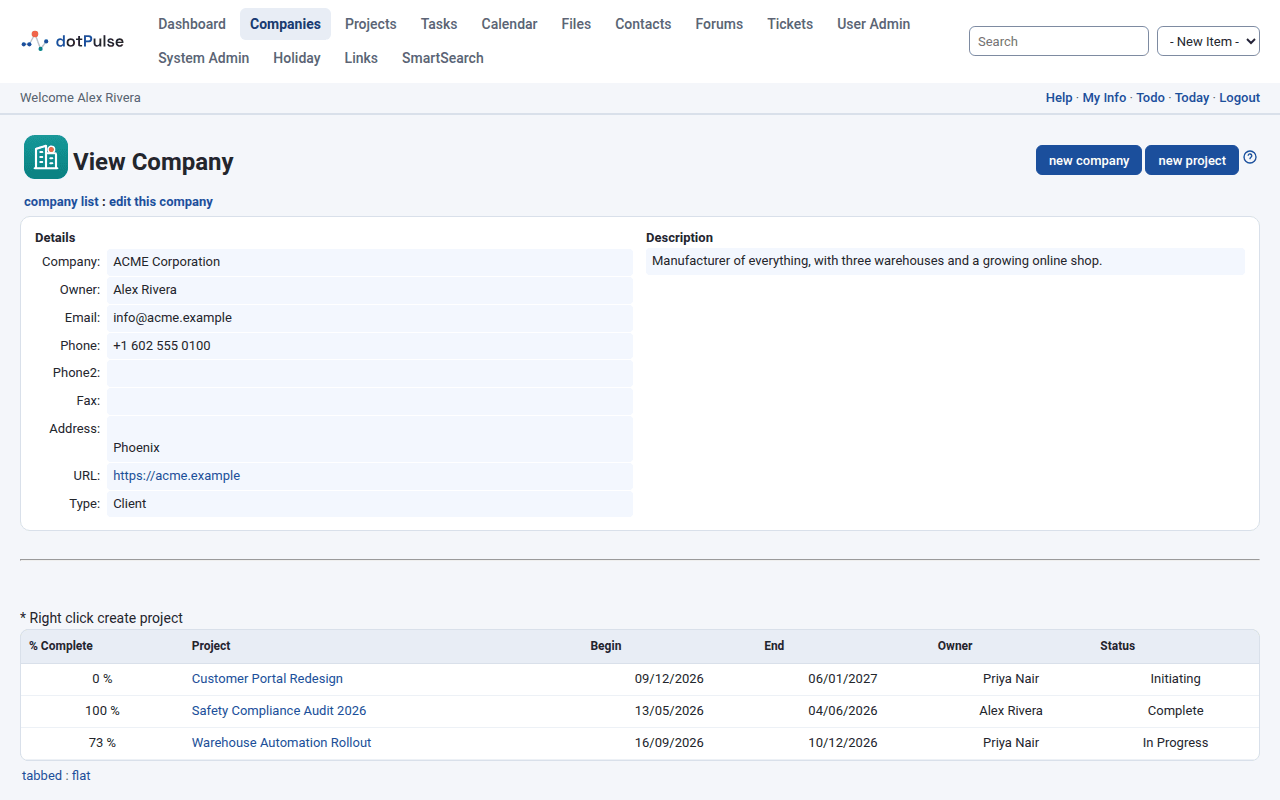
- The title says where you are, for example View Company.
- Buttons and filters sit to the right of the title, for example new company or new project.
- Links sit on the line below the title, separated by colons. They take you to related pages, for example company list : edit this company. A link such as projects list or contacts list always takes you back to the list you came from.
- A delete link, such as delete company, sits on the right of that line when you are allowed to delete the item. dotPulse asks you to confirm first.
- The help icon, at the far right of the title, opens the help for the page.
Messages
After you save, delete or do something that fails, dotPulse shows a short message near the top of the page, for example to confirm that a record was updated or to explain what went wrong.
Tabs
Many pages split their content into tabs, for example the Active Projects, Departments, Users and Contacts tabs of a company. Click a tab to show it. dotPulse remembers the last tab you opened on each page.
Some modules add their own tabs to other modules' pages, so the tabs you see depend on the modules installed.
Unless you changed the Tabbed Box View preference, you also see the links tabbed : flat above the tabs. flat shows the content of all tabs one after the other on a single page; tabbed goes back to tabs. See Your account and preferences.
Filters and sorting
Lists often have filters in the title block, for example Owner filter on the companies list, or Company and Event Filter in the calendar. Choose a value and the page reloads with the filtered list. Most filters keep their value while you move around dotPulse, until you log out.
In many lists you can click a column heading, such as Company Name, to sort by that column. Click it again to reverse the order.
Pick a date
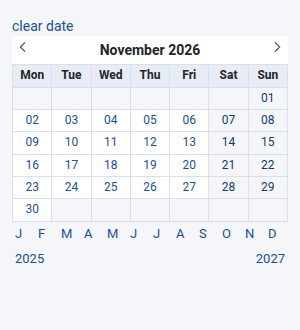
Most date fields have a small calendar icon next to them. Click it and a small window opens with a month calendar:
- Click a day to put it in the field.
- Use the arrows to move a month back or forward. The letters below the calendar jump to a month of the same year, and the years jump a year back or forward.
- Click clear date to empty the field.
Allow pop-ups
The date picker, the password change and some selectors open in small windows. If nothing happens when you click them, allow pop-ups for your dotPulse site in your browser.
Expand and collapse
Some pages hide details until you ask for them. Click the expand icon (a plus sign in a small box) to show them; it turns into a minus sign, which hides them again. For example:
- On a project's page, the icon next to the project name shows or hides the project's details.
- In task lists, a task that has subtasks has an icon that opens or closes its subtasks.
Use dotPulse on a phone
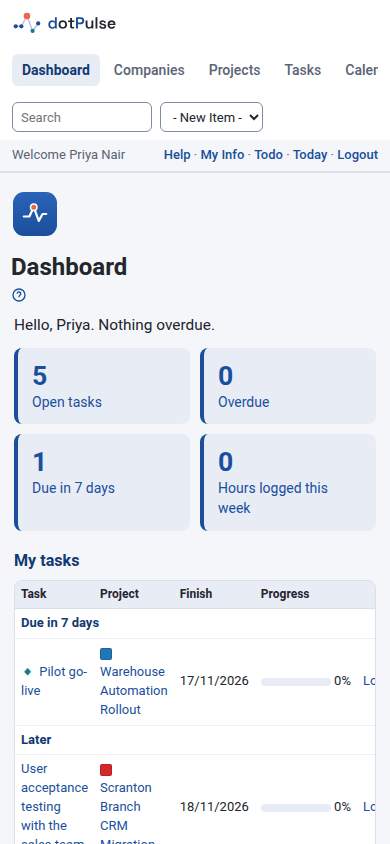
dotPulse works in a phone's browser. On a narrow screen:
- The modules menu stays on one line. Swipe it sideways to reach the other modules.
- Forms stack each label above its field.
- Lists and calendars keep their columns and scroll sideways inside themselves. Swipe the list, not the page.
Light and dark theme
dotPulse comes with a light theme, dotPulse, and a dark one, dotpulse-dark. You choose yours in the User Interface Style preference. See Your account and preferences.
Log out
Click Logout in the bar under the modules menu. Always log out on a shared computer.