Upgrading
dotPulse upgrades its database in place. The same steps work for a new dotPulse version and for a dotProject 2.x site: back up, replace the code, run the installer, then upgrade the add-on modules.
Before you start
- Read the release notes of every version between yours and the new one. They are on the GitHub releases page. Each has a Changes to know about or Breaking changes section and an Upgrading checklist.
- Check the PHP version. dotPulse 3.2.0 and later need PHP 8.2 or later.
- Plan a short downtime. Users should not work while the database is upgraded.
1. Back up
Back up:
- the database, with your usual tool (for example
mysqldump); - the
files/directory, which holds the uploaded files; includes/config.php;locales/andmodules/*/locales/, if you edited translations in System Admin › Translations. New versions replace these files, so you will need to merge your entries back in.
Rehearse on a copy
If you work from a clone of the repository and have Docker, make rehearse DUMP=/path/to/dump.sql.gz ADMIN=<admin user> upgrades a copy of your database in a sandbox, then crawls every page. See docker/README.md in the repository.
2. Replace the code
Put the new code in place of the old one. Keep includes/config.php and files/. Replace vendor/ too.
Delete the old tree rather than copying the new files over it. Files that a version removes would otherwise stay behind.
3. Run the installer
Open the install/ folder of your site in a browser, for example https://pm.example.com/install/.
-
The installer finds your configuration and your database, and shows a note that an existing installation was detected. Click Start Upgrade.
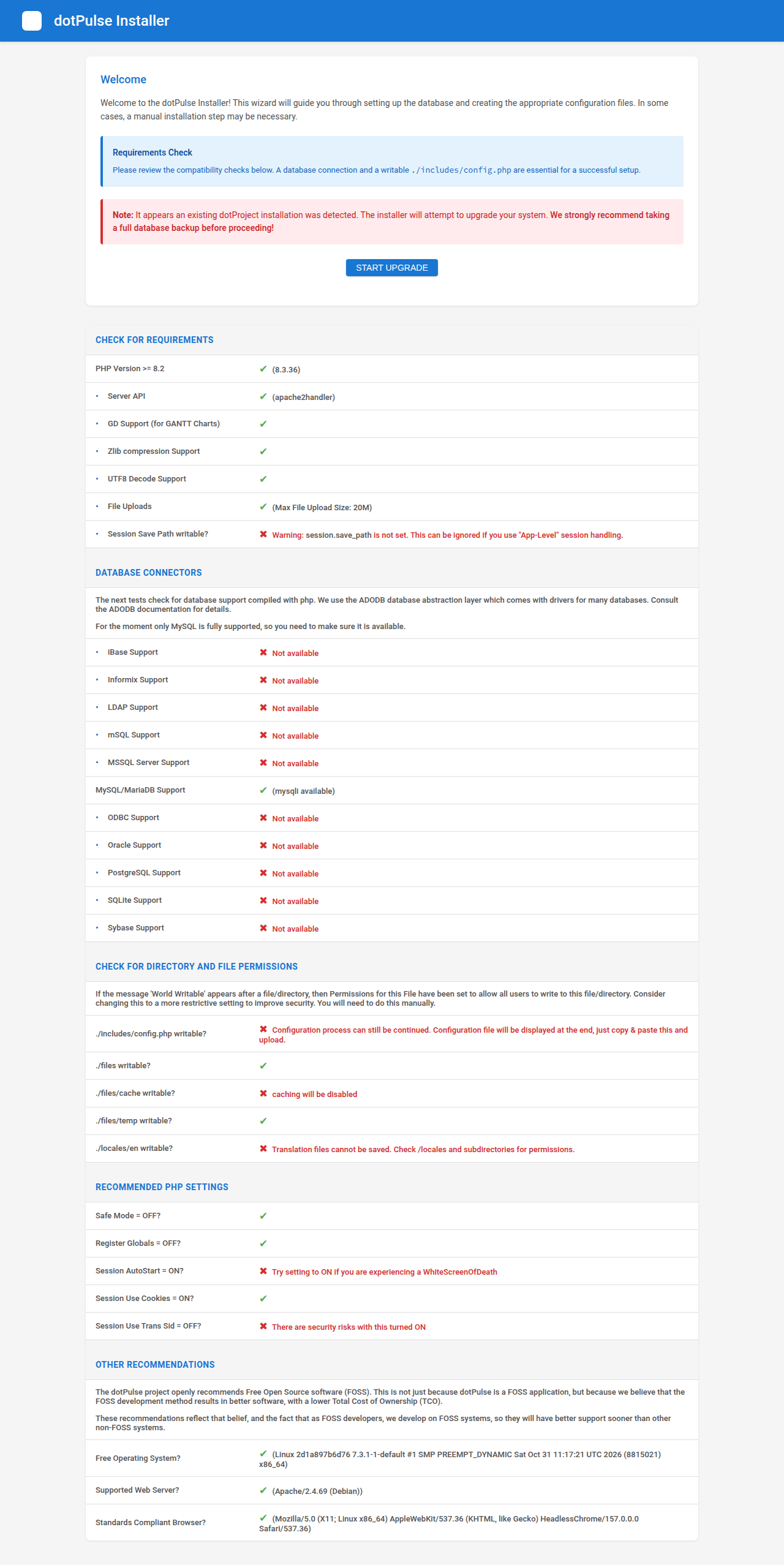
-
The database fields are empty. Enter the settings from your
includes/config.php: host, name, prefix, user and password. The installer refuses to continue unless they match the file exactly. - Click one of the buttons at the bottom:
- upgrade Database Only upgrades the database and leaves
includes/config.phpuntouched; - upgrade & Write Config also rewrites
includes/config.php. The new file has only the database settings, so any line you added by hand is lost.
- upgrade Database Only upgrades the database and leaves
- The progress page shows Applying database updates and the steps that follow. Success! means the database is up to date.
Then remove the install/ directory again, or deny access to it.
Note
Some releases have no database changes. Run the installer anyway: it records the new version.
4. Upgrade the modules
Add-on modules have their own versions and their own database tables. The installer does not upgrade them.
- Log in as an administrator and open System Admin. If a module needs an upgrade, the start page says so under Active modules (for example 2 upgrades to install).
- Open System Admin › Modules. Each module with a newer version shows an Upgrade available badge.
- Click upgrade next to each of them and confirm.

The release notes list which modules change in each version, and anything to do afterwards. For example, after the holiday module upgrade in 3.1.1 you choose a country in its Settings tab.
5. Check the site
- Log in, open a few projects and tasks, and look at System Admin: the start page shows the version you now run.
- If you use mail, send a test message from System Admin › Notifications and email.
Upgrading from dotProject 2.x
dotPulse upgrades a dotProject 2.x database in place, with the steps above. Keep your dotProject includes/config.php: the installer reads it to find your database.
Version 3.0.0 is where dotPulse broke with dotProject. Read its release notes before you start. What changes for you:
- The name. Page titles and the mail subject prefix change to dotPulse, unless you had customised them. Internal names stay: tables,
$dPconfigand the module API work as before. - Third-party modules. dotPulse blocks inline JavaScript with a Content-Security-Policy. Add-on modules that are not part of dotPulse and use inline scripts stop working until they are adapted. Test them with the browser console open; violations are also logged to
files/temp/csp-reports.log. - Links that changed data. Actions that changed data through a plain link now need a form post. Bookmarks or scripts that called such links stop working.
- The cron job.
queuescanner.phpnow runs from the command line only, with--base-url. Change your cron job as shown in Installing. - Password reset now emails a single-use link valid for one hour, instead of a new password.
- PostNuke login is gone (since 3.2.0). Users who logged in through PostNuke set a dotPulse password with the forgotten-password link on the login page.
- Mantis. The Mantis module now uses the MantisBT REST API. Each user enters their MantisBT API token once.
After the upgrade, also:
- Upgrade the modules in System Admin › Modules, as in step 4. Coming from dotProject, several bundled modules have upgrades.
- Set up mail: set the Sender address and send a test email from System Admin › Notifications and email.
- Apply the web server rules from the deployment security guide. This matters most on nginx, which ignores the
.htaccessfiles.
Passwords stored by dotProject keep working. dotPulse converts each one to a stronger hash the next time its user logs in.