Companies, departments and contacts
Projects are done for and by organisations and people. dotPulse keeps them in three places:
- Companies: your own organisation, your clients, suppliers and so on.
- Departments: the units inside a company.
- Contacts: the people, inside or outside your organisation.
Every project belongs to a company, so companies usually come first.
Companies
Open Companies in the modules menu.
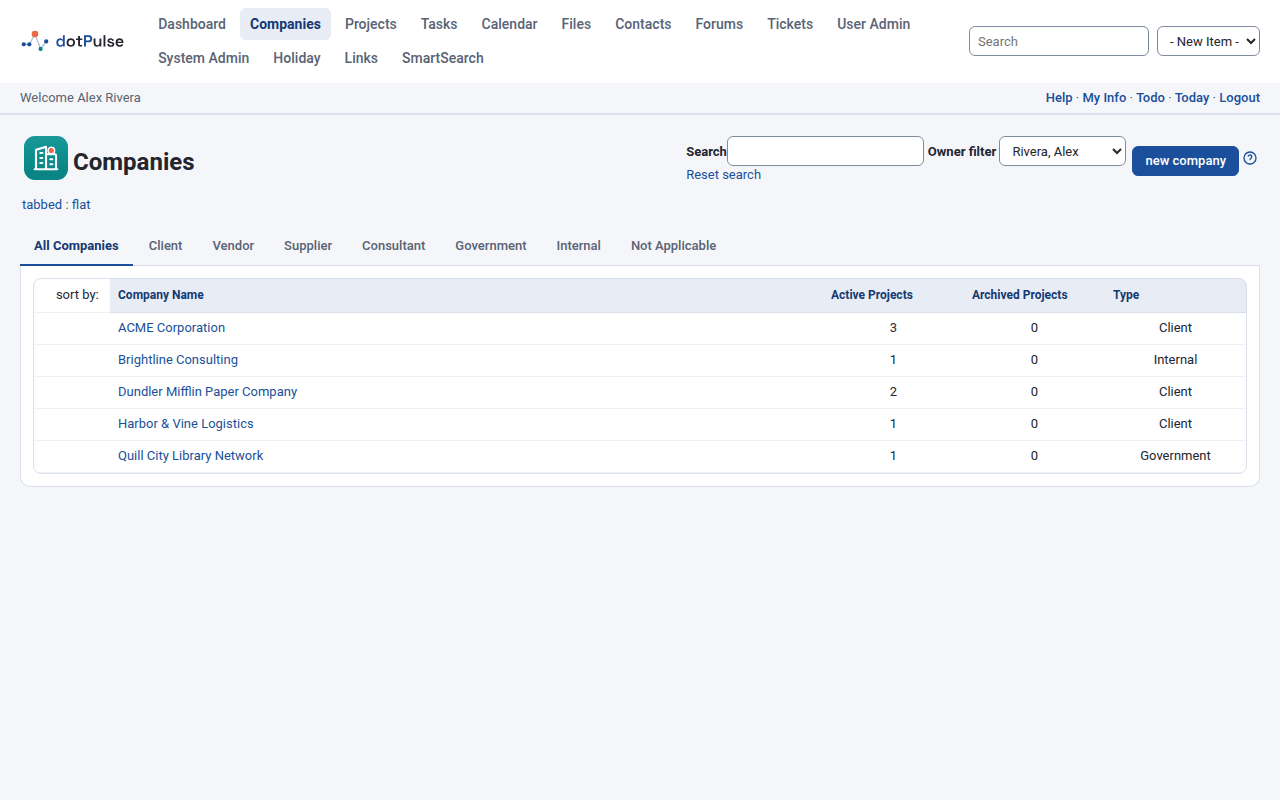
Find a company
The list has one tab per company type. All Companies shows every company; the other tabs show one type each: Client, Vendor, Supplier, Consultant, Government, Internal and Not Applicable. Your administrator can change this list of types.
For each company you see its Company Name, the number of Active Projects and Archived Projects, and its Type. Click a column heading to sort by it.
To narrow the list:
- Type part of a name into Search and press Enter. Click Reset search to show all companies again.
- Use Owner filter to show the companies owned by one person, or All.
Missing companies?
The Owner filter starts on your own name, so at first you only see the companies you own. Choose All to see every company you may access.
Add a company
- Click Companies › new company, or choose Company in the - New Item - list of the top bar.
- Fill in the form. Only Company Name is required.
- Click submit.
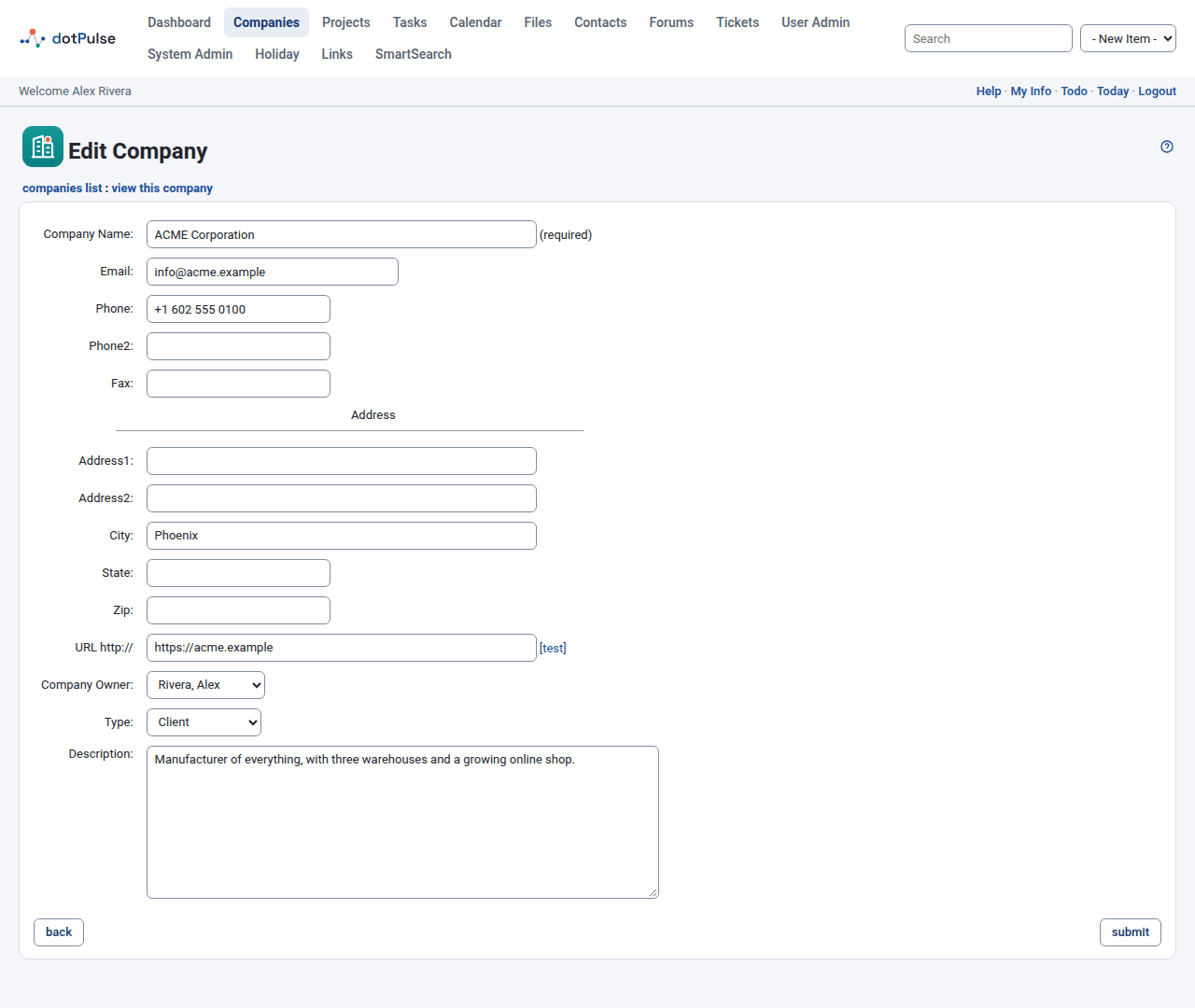
The form has these fields:
| Field | What it is for |
|---|---|
| Company Name | The name shown everywhere in dotPulse. Required. |
| Email, Phone, Phone2, Fax | How to reach the company. |
| Address1, Address2, City, State, Zip | The company's address. |
| URL | The company's website, without http://. Click [test] to open it in a new window and check it. |
| Company Owner | The person in your organisation responsible for this company. |
| Type | Client, supplier and so on. It decides which tab of the list the company appears in. |
| Description | Free notes about the company. |
View a company
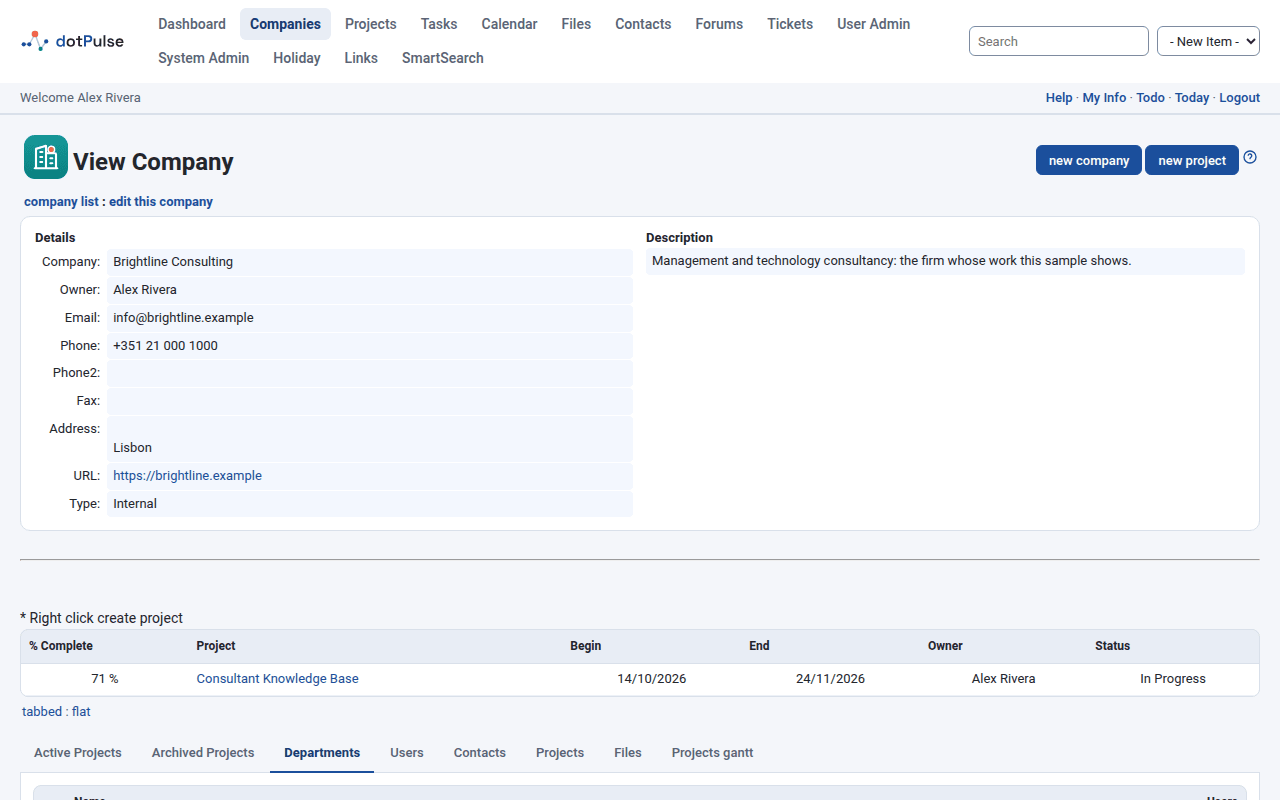
Click a company's name to open its page, View Company. The top shows its details and description. Below are tabs:
- Active Projects and Archived Projects: the company's projects.
- Departments: the company's departments.
- Users: the dotPulse users who work for the company.
- Contacts: the company's contacts.
Other modules may add more tabs, for example for files or Gantt charts.
From the company page you can also click new project to start a project for this company. See Projects.
Edit or delete a company
On the company's page, click edit this company, change the form and click submit.
To delete a company, click delete company on the company's page and confirm. dotPulse only lets you delete a company that has no projects, departments or users. If it still has some, hover over the delete link to see what is in the way.
Departments
Departments split a company into units, such as Sales or Engineering. They can be nested: a department can have a parent department.
Add a department
- Open the company's page and go to the Departments tab.
- Click new department.
- Fill in the form and click submit.
The form has the Department Company, a Department Name (required), Phone, Fax, address fields, URL, Department Parent, Owner and Description.
View, edit or delete a department
On the company's Departments tab, click a department's name to open it. Its page shows the department's details and a Contacts tab with the people in it. Use edit this department and delete department on that page to change or remove it.
Contacts
Open Contacts in the modules menu.
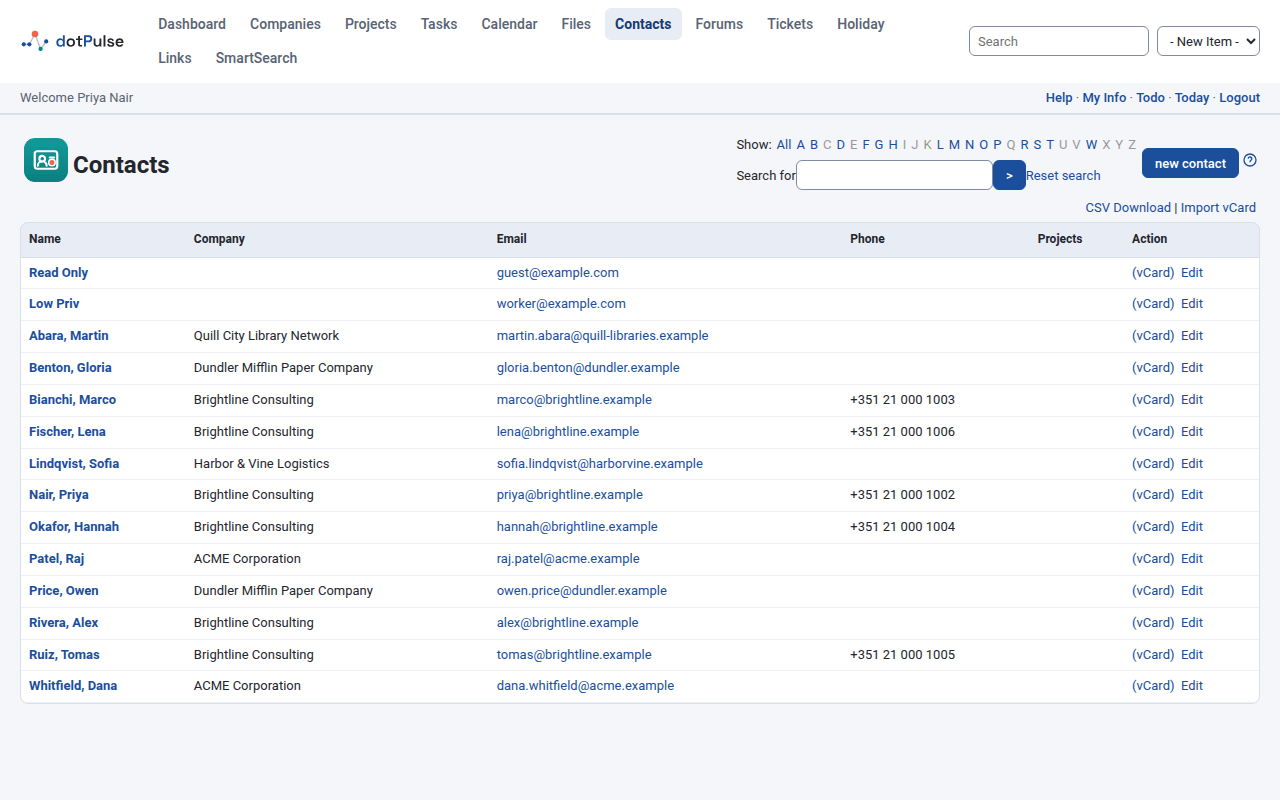
The list shows each contact's Name, Company, Email and Phone. When a contact is linked to projects, the Projects column has a link that opens a small window with those projects; click one to open it. The Action column has (vCard), to download the contact as a vCard, and Edit.
Find a contact
- Click a letter after Show: to list the contacts whose name starts with it. Letters in grey have no contacts. Click All to show everyone again.
- Type a word into Search for and click >. dotPulse looks in the first and last names, the company, the email address and the notes. Click Reset search to clear it.
Add a contact
- Click Contacts › new contact, or choose Contact in the - New Item - list of the top bar.
- Fill in the form.
- Click submit.
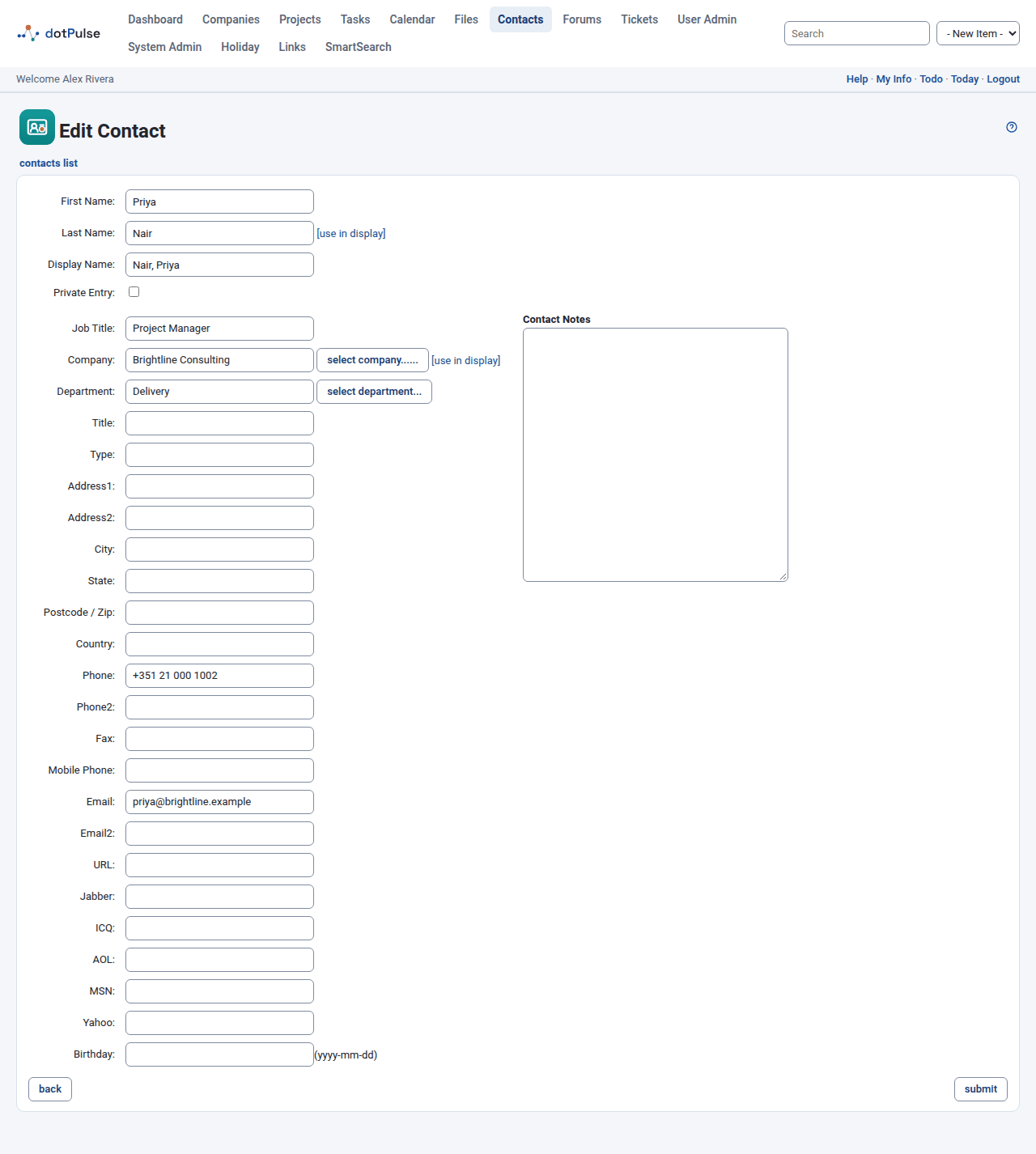
The main fields are:
| Field | What it is for |
|---|---|
| First Name, Last Name | The contact's name. The last name is required. |
| Display Name | How the contact is listed and sorted, for example "Smith, Anna". Click [use in display] next to the last name or the company to fill it in from them. Required. |
| Private Entry | Tick it to keep the contact to yourself. See below. |
| Job Title, Title, Type | The contact's role, a title such as Dr. or Ms., and a free category of your own. |
| Company | Click select company... to pick the contact's company. |
| Department | Click select department... to pick one of the company's departments. Choose the company first. |
| Address fields | Address1, Address2, City, State, Postcode / Zip and Country. |
| Phones and email | Phone, Phone2, Fax, Mobile Phone, Email, Email2. |
| URL | The contact's website. |
| Messaging | Jabber, ICQ, AOL, MSN and Yahoo accounts. |
| Birthday | Written as yyyy-mm-dd. Birthdays show in the calendar. |
| Contact Notes | Free notes. |
Keep a contact private
Tick Private Entry to make a contact yours alone. Other users don't see it in the contacts list and can't open, edit or download it.
Edit or delete a contact
Click Edit next to the contact in the list, or open the contact and click edit. Change the form and click submit.
To delete a contact, open it and click delete contact, then confirm. You can't delete the contact of a dotPulse user (see below).
Start a project from a contact
On a contact's page, click new project. dotPulse opens the project form with the contact's company already chosen. See Projects.
Export contacts
- One contact as a vCard: click (vCard) next to the contact in the list.
Your browser downloads a
.vcffile that address books and phones can import. - All contacts as a spreadsheet: click CSV Download at the top right of the list. The file uses the column names of Outlook's contact export, so most address books can import it.
Import contacts from vCards
- Click Import vCard at the top right of the contacts list.
- Next to Fetch vCard(s) File, choose a
.vcffile. One file can hold many contacts. - Click submit.
dotPulse creates one contact for each card. If a card's organisation has exactly the same name as a company in dotPulse, the contact is linked to that company.
Tip
Importing always creates new contacts. Importing the same file twice gives you each contact twice.
Contacts and users
Every dotPulse user has a contact record. It holds the user's name, email, phone numbers and address, which is why users appear in the contacts list and in their company's Contacts tab.
- Change a user's phone or address by editing their contact.
- You can't delete a user's contact: dotPulse says "This contact belongs to a user and cannot be deleted."
- Contacts of users who are no longer allowed to log in are left out of the contacts list.
Users, roles and permissions
Users are the people who can log in. Each user belongs to a company and gets one or more roles, and the roles decide what they can see and do.
Your administrator manages users, roles and permissions in User Admin. You can see your own roles and permissions on the Roles and Permissions tabs of your account page.